
Connecting Your Solana Wallet
You can connect an external Solana wallet to print.world, sign in with a social account, or scan a QR code from your phone. Whichever method you start with becomes a credential for your print.world account, and you can link more methods later from the Account app.
New to the platform itself? Start with the Platform Overview for a tour of the desktop experience.
Opening the Sign-In Window
Section titled “Opening the Sign-In Window”Click Sign in in the top bar. The Welcome to Print World window opens and lists every available sign-in method. It also appears automatically whenever you try to open an app that requires an account.
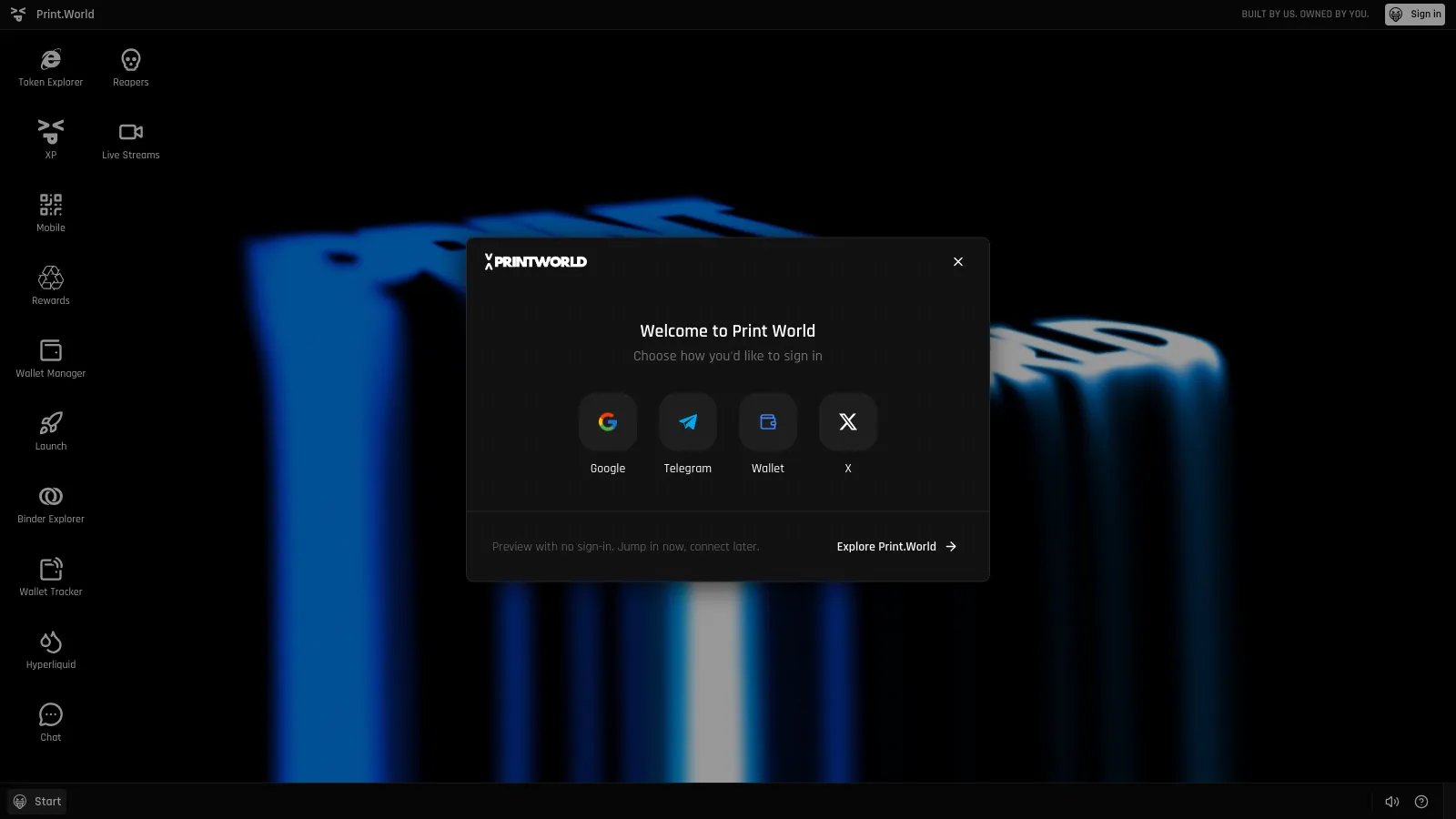
Sign-In Methods
Section titled “Sign-In Methods”-
Choose Google in the sign-in window.
-
Pick your Google account in the popup that opens.
-
You’re signed in. First-time users are guided through Print Wallet creation.
Telegram
Section titled “Telegram”-
Choose Telegram. A new window opens with the print.world bot in Telegram.
-
Confirm the sign-in inside Telegram.
-
Return to your print.world tab — it detects the confirmation and signs you in automatically.
-
Choose X. You’re redirected to X to authorize print.world.
-
Approve the authorization.
-
You’re returned to print.world and signed in.
Solana Wallet
Section titled “Solana Wallet”Available on desktop. You sign in by proving ownership of a wallet you already have — no email or social account required.
-
Choose Wallet. A wallet selection window opens, listing the wallets detected in your browser.
-
Pick your wallet and approve the connection request in the wallet extension.
-
Sign the verification message your wallet displays. This is a signature only — it costs nothing and sends no transaction.
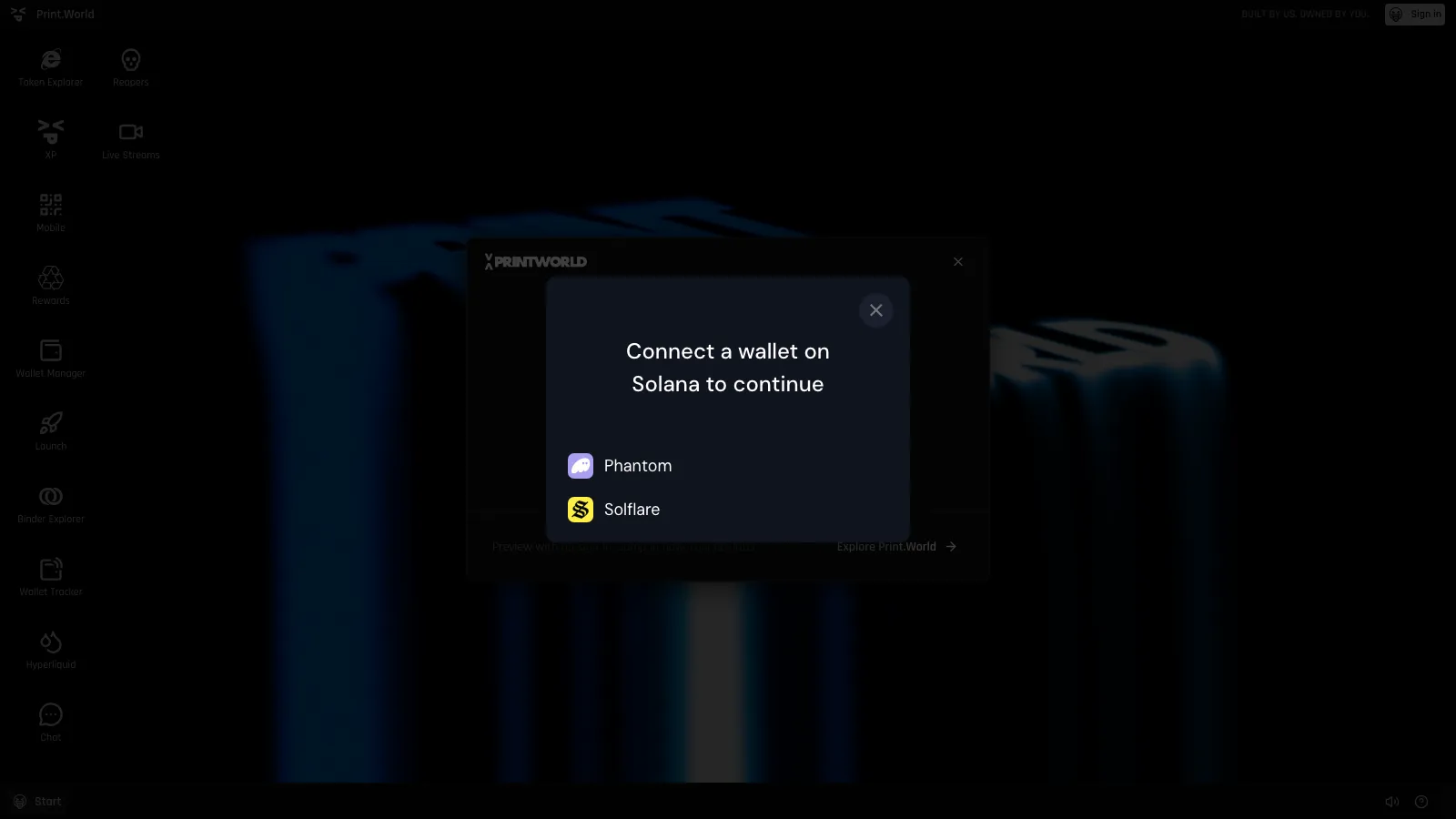
QR Code (Mobile)
Section titled “QR Code (Mobile)”If you’re already signed in on desktop, you can sign your phone in by scanning a QR code — no need to repeat any other sign-in flow. See Linking a mobile device for the full walkthrough.
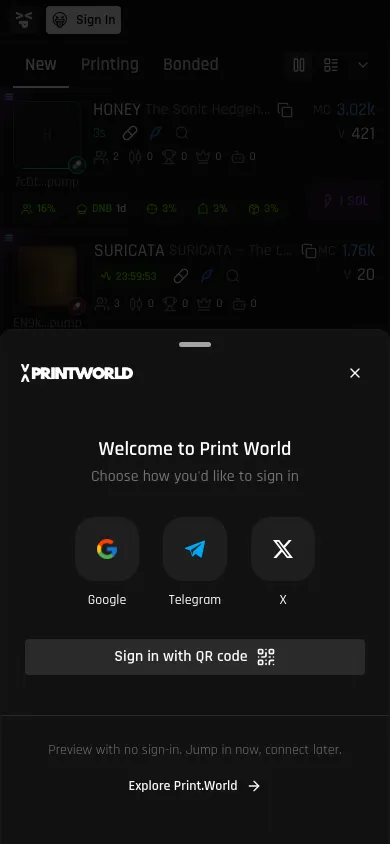
Supported Solana Wallets
Section titled “Supported Solana Wallets”- Phantom
- Solflare
- Any Wallet Standard wallet — wallets that implement the Solana Wallet Standard (such as Backpack) are detected automatically and appear in the wallet selection window.
- Solana Mobile Wallet Adapter — on Android, compatible mobile wallets are detected as well.
Exploring Without Signing In
Section titled “Exploring Without Signing In”You don’t need an account to look around. The sign-in window’s footer reads “Preview with no sign-in. Jump in now, connect later.” — click Explore Print.World to browse public areas such as the Token Explorer and token pages. When you open a feature that needs an account, the sign-in window reappears.
One Account, Many Sign-In Methods
Section titled “One Account, Many Sign-In Methods”All of your linked sign-in methods lead to the same account. From the Account app you can connect Google, Telegram, X, and a wallet side by side, then use any of them the next time you sign in. See Connections for how to link and unlink methods.
Signing Out
Section titled “Signing Out”-
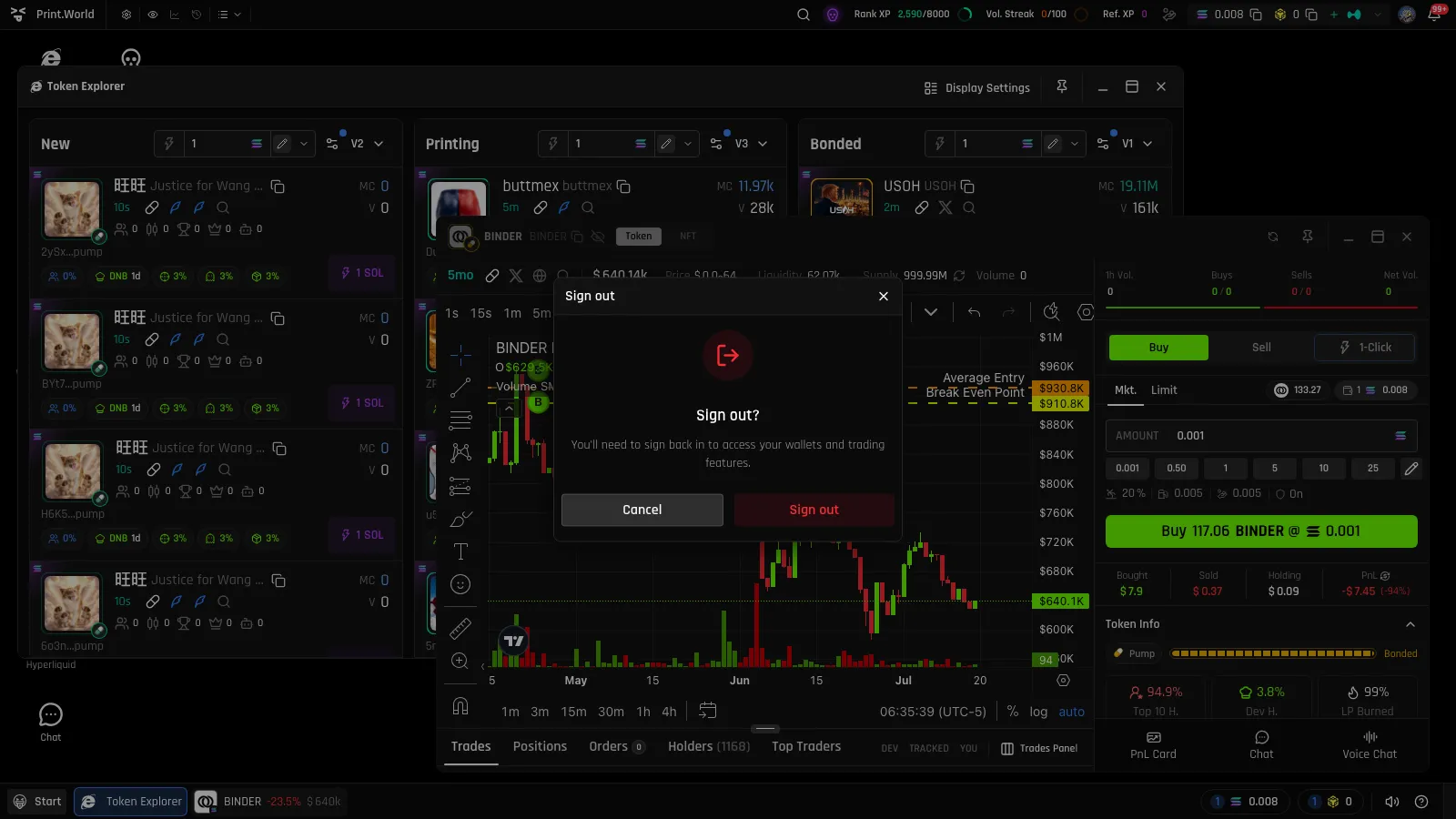
Open the Start menu and choose Log out. On mobile, open the navigation drawer and tap Log out.
-
Confirm in the “Sign out?” dialog.
Signing out ends your session and disconnects any external wallet. You can sign back in at any time with any linked method.
Logging Out on Every Device
Section titled “Logging Out on Every Device”If you’ve signed in on multiple devices, you can end all sessions at once: open Connect mobile device from the Start menu and use the log out across all devices action. Every device — including the one you’re using — is signed out and must sign in again.