
Going Live
Go Live lets creators host a crypto livestream directly inside print.world. Your stream opens in its own Live Portal window where you manage the camera, screen sharing, chat, and voice — and viewers find you through the platform’s stream discovery.
Starting a Stream
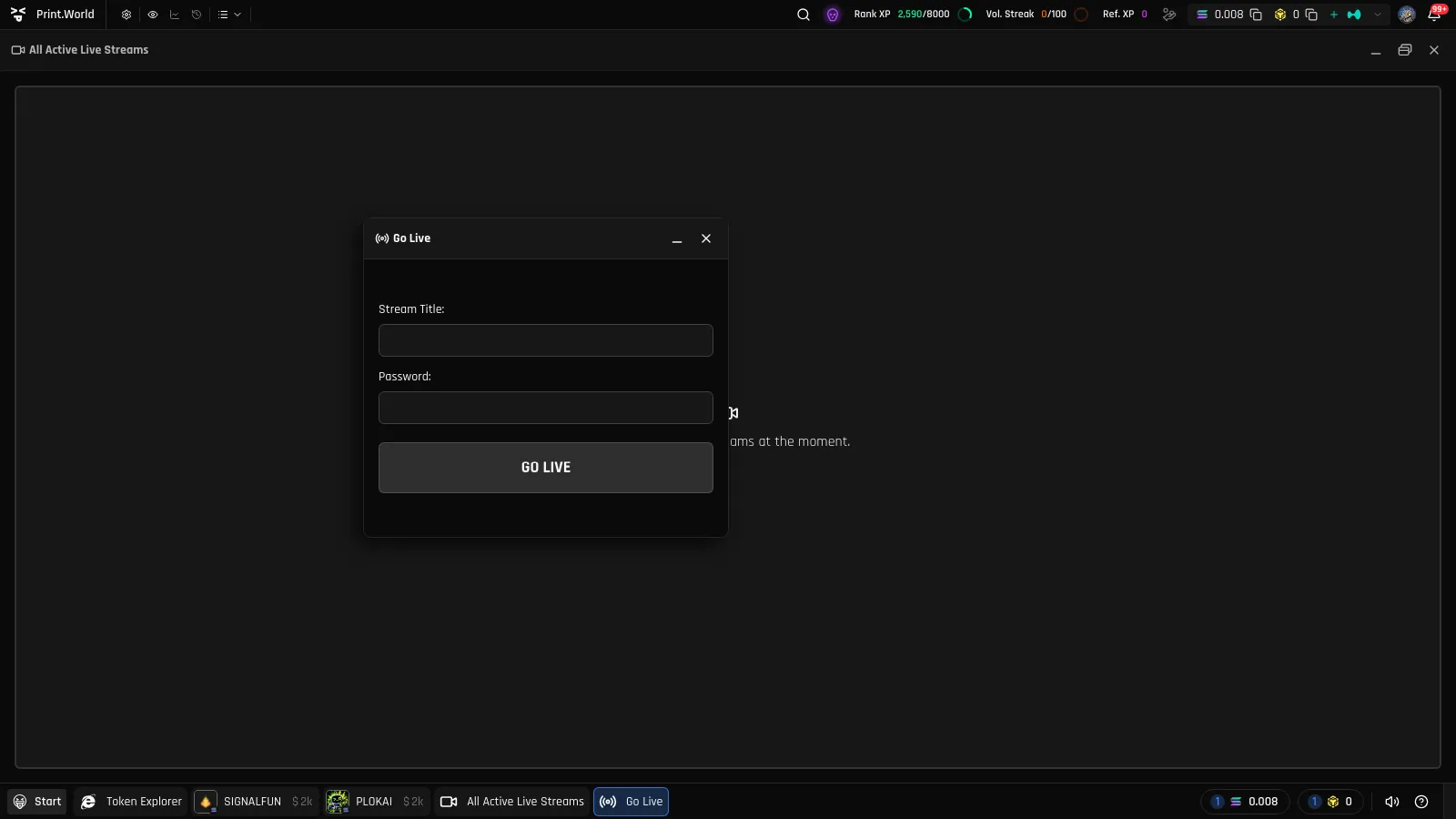
Section titled “Starting a Stream”- Open the Start Menu, go to the Livestream category, and choose Go Live.
- Enter your Stream Title and confirm your access credentials.
- Click GO LIVE.
Your camera and microphone start automatically, and a Live Portal window opens with you as the host. Your stream immediately appears in the Watch Streams grid for everyone.
Every stream is associated with a token, which powers the stream’s chat and voice room.
Host Controls
Section titled “Host Controls”As the host, your Live Portal window gives you the full control set:
| Control | What it does |
|---|---|
| Pause | Turns your camera off temporarily. You see “You have paused the stream”; viewers see “The host has paused the stream”. |
| Mic mute | Silences your microphone without pausing the video. |
| Screen share | Broadcasts your screen instead of your camera. Use Start screen sharing / Stop screen sharing to switch. Screen sharing is unavailable while the stream is paused. |
| Picture-in-Picture / Fullscreen | Same view controls available to viewers. |
You can only host one stream at a time — attempting to broadcast the same stream from a second surface is blocked.
Editing Your Stream Title
Section titled “Editing Your Stream Title”Click the pencil icon next to your stream’s name to rename it while live (up to 30 characters). Confirm with the check button. The window title updates, and viewers see the new name in real time.
Your Preview Card
Section titled “Your Preview Card”While you are live, print.world automatically keeps your stream’s preview card fresh — it periodically captures a snapshot of your video as the thumbnail and updates your viewer counts. Viewers browsing the Watch Streams grid always see a recent picture of your broadcast.
Paired Streams
Section titled “Paired Streams”Streams can be paired so two hosts broadcast side by side in the same window, with both hosts’ audio joined into a shared voice room.
- When your stream is paired, viewers see both videos side by side.
- Click Next Stream to leave your current partner and get matched with a new one. The button is disabled while you wait for a match.
- Pairing updates happen live — your partner can rotate away, and a new one appears automatically.
Ending Your Stream
Section titled “Ending Your Stream”There are two ways to end the broadcast:
- Click End live, then confirm in the End Stream dialog (“Are you sure you want to end this stream?” → Yes).
- Close the Live Portal window — you’ll be asked to confirm, and closing ends the stream.
Once ended, viewers see the Stream ended overlay, the stream leaves the discovery grid, and its chat becomes read-only.
What’s Next
Section titled “What’s Next”- Watching Streams — the viewer experience of your stream.
- Stream Chat — the conversation running next to your broadcast.
- Voice Chat — the voice room your viewers join automatically.