
Live Trades — The Wallet Activity Feed
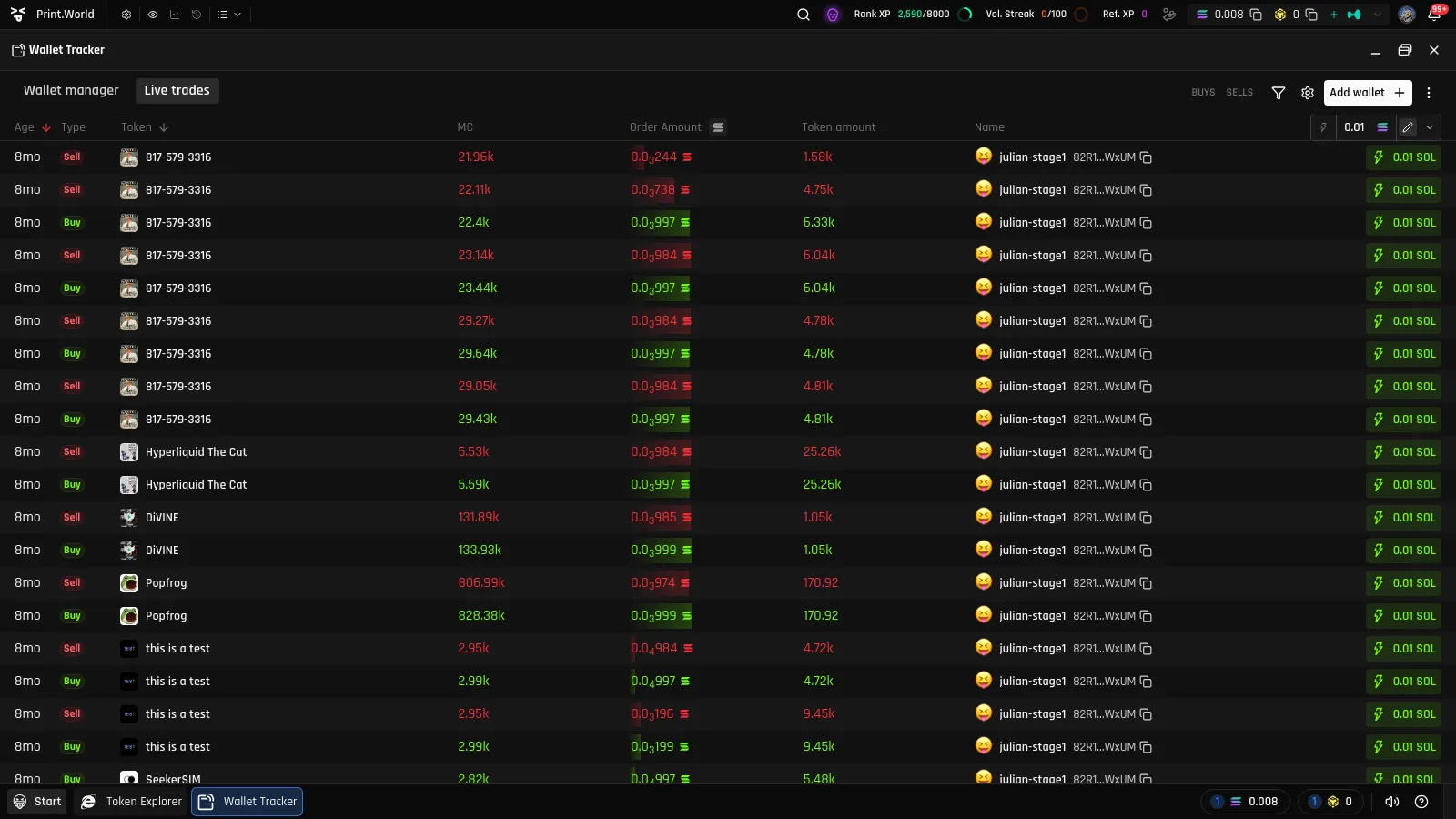
The Live trades tab is the heart of the Wallet Tracker: a live wallet activity feed where every buy and sell from your tracked wallets appears the moment it happens. It’s also the tab the app opens on by default.
How the Feed Fills Up
Section titled “How the Feed Fills Up”- Live updates — new trades stream in continuously while the app is open. No refresh needed.
- History on add — when you add a wallet, its recent trading history is imported automatically, so the feed shows past activity right away instead of starting empty.
To keep the feed useful, only trades from supported exchanges with complete token information are shown.
Reading the Feed
Section titled “Reading the Feed”| Column | What it shows |
|---|---|
| Age | How long ago the trade happened. Sortable — newest first by default. |
| Type | Buy (green) or Sell (red). |
| Token | The token’s image and name. Click it to open the token’s ticker page and see its chart and trade activity. |
| MC | The token’s market cap at the time of the trade. |
| Order Amount | The trade’s value. A colored heat bar behind the value shows how large the trade is relative to the biggest order currently visible — big buys and sells jump out at a glance. |
| Token amount | How many tokens changed hands. |
| Name | Which tracked wallet made the trade — its emoji icon and display name, with a button to copy the address. |
| Quick Buy | A one-click buy button for that trade’s token (see below). |
Filtering the Feed
Section titled “Filtering the Feed”Three controls in the tab header let you cut the feed down to what matters:
- BUYS / SELLS — toggle buttons that filter the feed by trade side.
- Funnel icon — Filters — set minimum and maximum ranges for Market Cap and Transaction Amount (SOL). A dot on the funnel icon shows when filters are active, and Reset filters clears them.
- Gear icon — Column settings — show or hide individual columns (Age, Status, Name, Token, Market Cap, Order Amount, Token Amount) to build the layout you want.
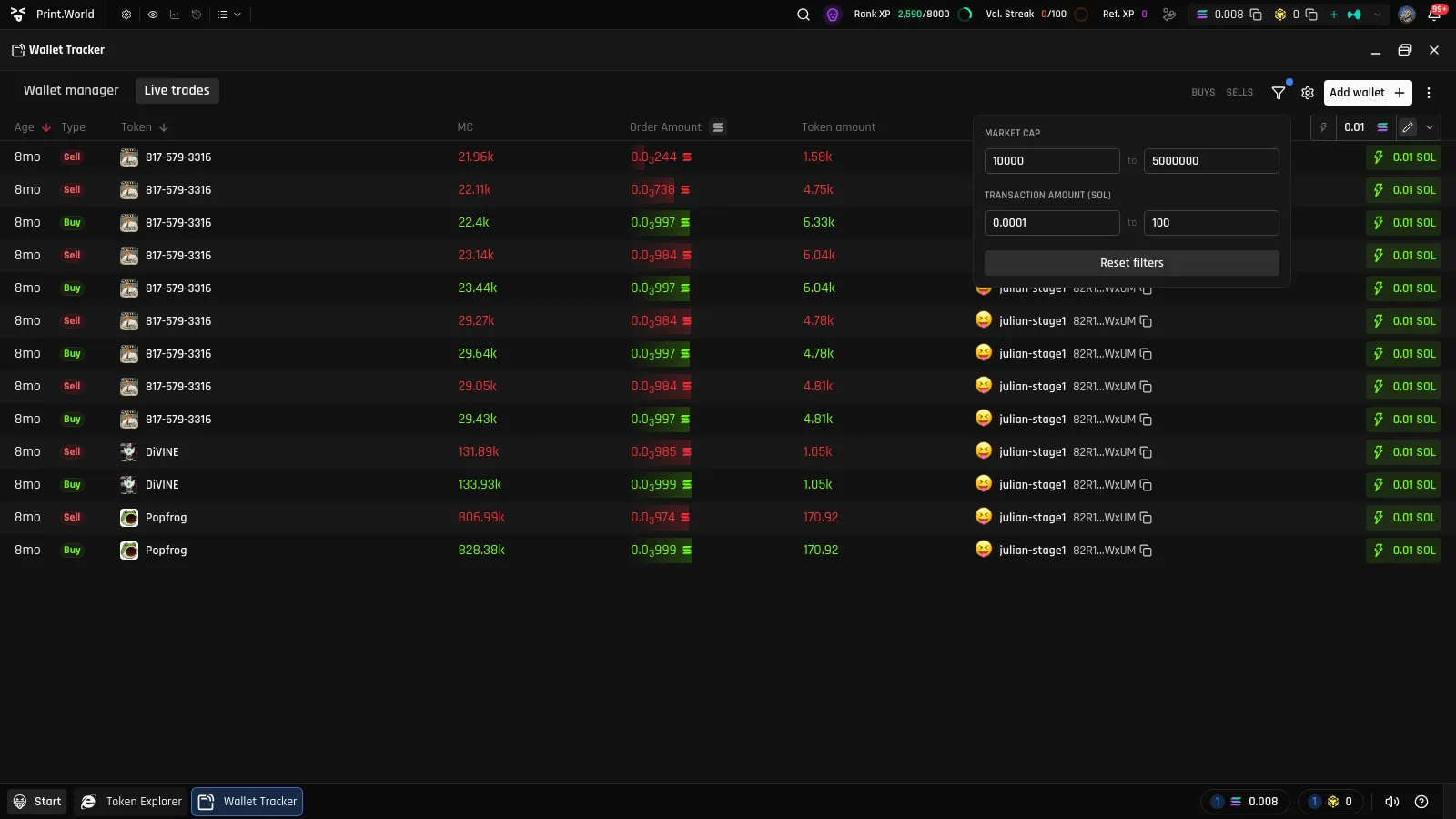
Your filters and column choices are remembered and follow you across devices.
You can also silence individual wallets without removing them: the feed toggle in the Wallet manager hides a wallet’s trades from the feed until you show it again.
Quick Buy
Section titled “Quick Buy”Every row in the feed ends with a ⚡ Quick Buy button — your way to react to a trade in real time. Click it and you instantly buy that trade’s token with your preset amount — no navigating to the token page, no order form.
- Preset amount — set the buy amount, in dollars, in the Quick Buy control in the column header. The row buttons always show what you’re about to spend (for example, “$25”); the dollars are converted to the chain’s native currency at the moment you click, and the buttons are disabled while the price feed is stale or unavailable.
- Dedicated slippage — Quick Buy in the Wallet Tracker has its own slippage setting, separate from your regular trading slippage, also adjustable from the header control.
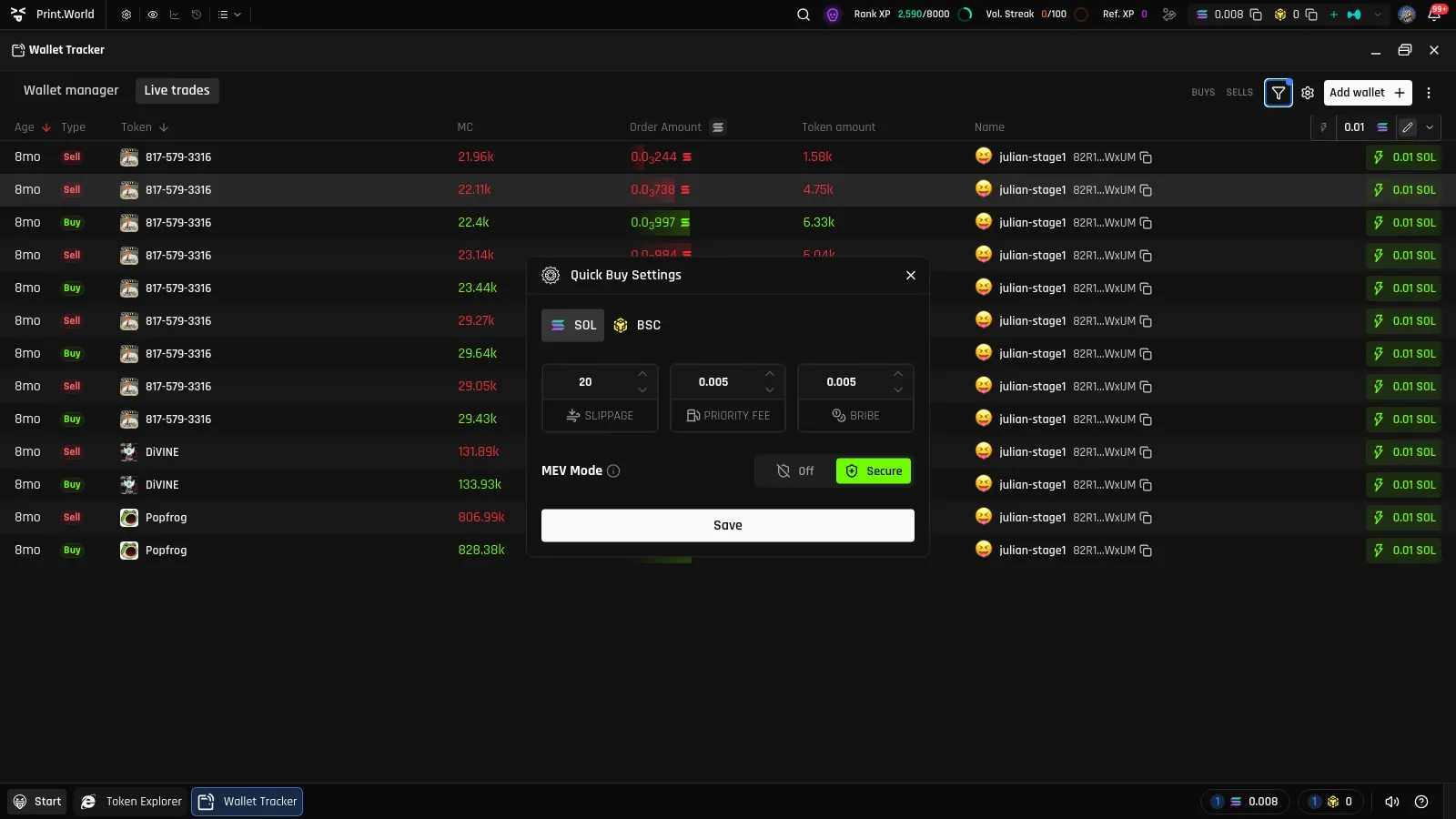
For how order execution, slippage, and fees work in general, see Buy & Sell.
What’s Next
Section titled “What’s Next”- Notifications — get alerted about trades even when the feed isn’t open
- Across the App — spot tracked wallets on token pages and charts