
Filters & Presets
Filters narrow each Token Explorer list down to exactly the Solana tokens you want to see. Each list — New, Printing, and Bonded — has its own independent filters: click the gear icon in a list header to open the Filters modal (a bottom sheet on mobile). A small dot on the gear tells you that list has active filter changes.
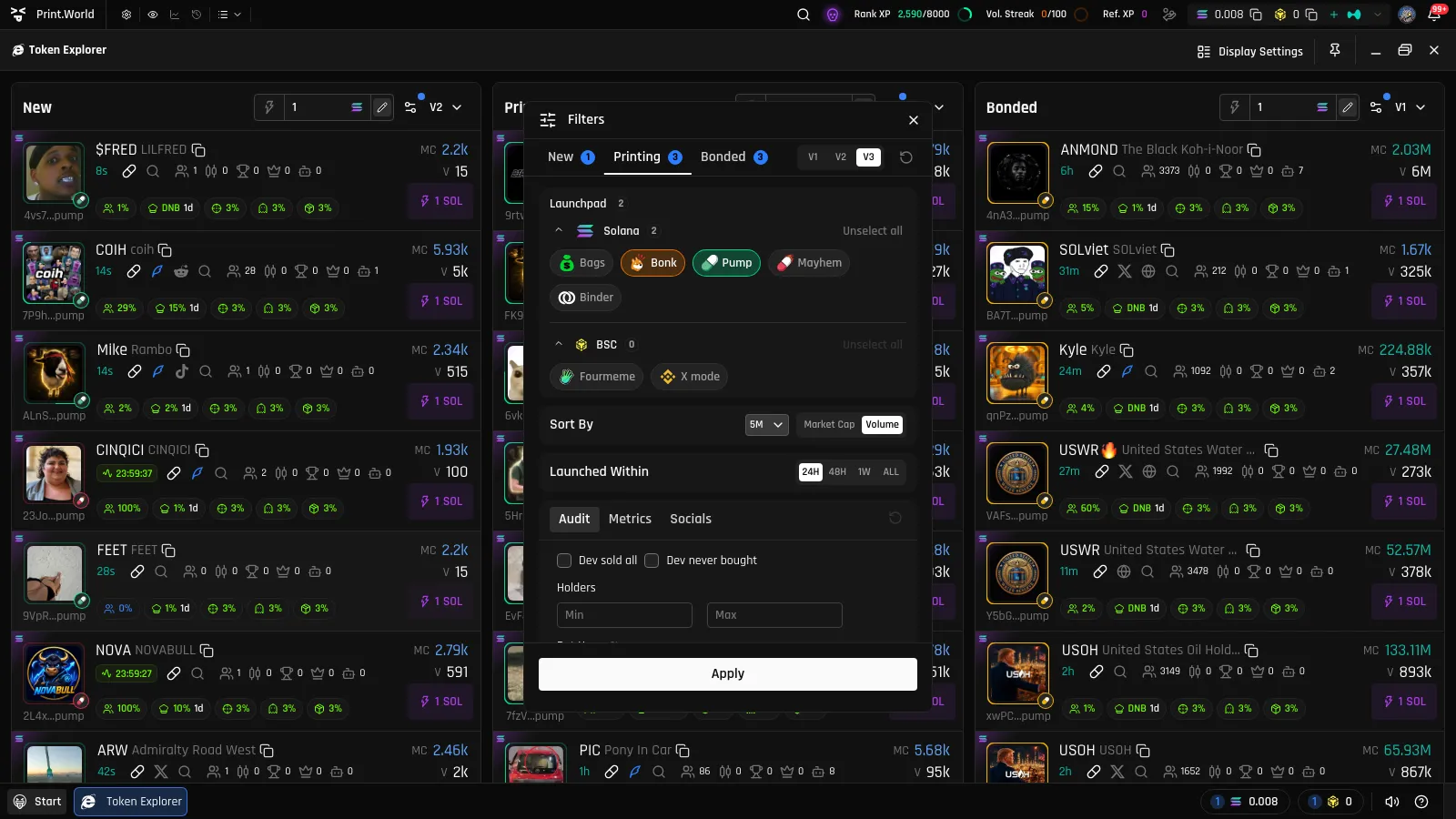
The modal opens on the tab of the list you came from, but you can switch between the New / Printing / Bonded tabs to edit any list. Each tab shows a badge counting how many filter changes it has, plus an undo button to reset that tab.
Launchpad
Section titled “Launchpad”Choose which launchpads’ tokens appear in the list. Launchpads are grouped by chain in collapsible sections — Solana, ETH, BSC — with a toggle pill per launchpad (for example, on Solana: Bags, Bonk, Pump, Virtual Curve, Mayhem, Binder).
On the Bonded tab, the same pills represent the DEX the token migrated to, rather than where it launched.
Sort By
Section titled “Sort By”Available on the Printing and Bonded tabs:
- Market Cap
- Volume — with a timeframe dropdown: 1M, 3M, 5M, 15M, 1H, 6H, 24H
- Migration Time — Bonded tab only
The New tab has no sorting section — it always streams tokens in creation order.
Launched Within
Section titled “Launched Within”On the Printing tab only, limit the list to tokens launched within a time window: 24H / 48H / 1W / ALL.
Audit, Metrics & Socials
Section titled “Audit, Metrics & Socials”Below the main sections, three sub-tabs hold finer-grained criteria. Each sub-tab shows its own change-count badge and undo button.
- “Dev sold all” — only tokens whose developer sold their entire position.
- “Dev never bought” — only tokens whose developer never bought.
- Holders — Min/Max holder count.
- Bot Users — Min/Max percentage of bot traders.
metrics
Section titled “metrics”Min/Max dollar ranges for:
- Liquidity
- Volume
- Market cap
socials
Section titled “socials”- Twitter / Website — only tokens that have these links.
- “Pump live” — “Only live” shows tokens with an active Pump live stream; “Only ended” shows tokens whose stream has finished. Selecting either automatically selects the Pump launchpads.
Applying & Resetting
Section titled “Applying & Resetting”- Apply — saves your changes and reloads the list with the new criteria. Filtering happens at the source, so the list re-populates with matching tokens.
- Reset to default — clears the current tab back to its defaults.
Presets: V1 / V2 / V3
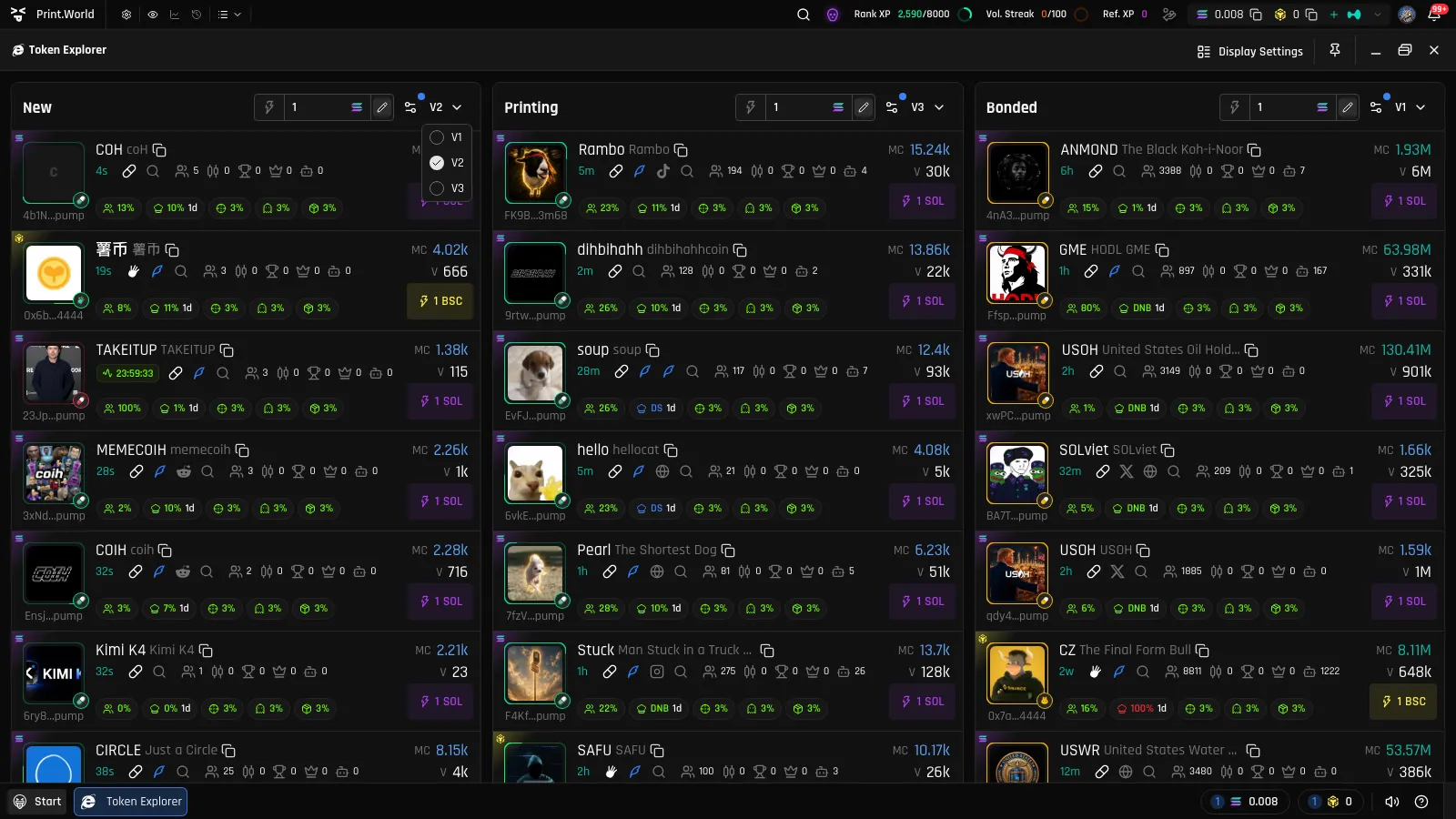
Section titled “Presets: V1 / V2 / V3”Every list has three preset slots — V1, V2, and V3 — so you can keep different filter setups ready (for example, a strict audit setup and a wide-open one).
- In the Filters modal, pick the slot you want to edit before clicking Apply — your changes are saved into the currently selected slot.
- In the list header, the preset dropdown next to the gear (visible when signed in) re-applies any saved slot instantly, without opening the modal.
- Your most recent slot is applied automatically the next time the explorer loads.
Where presets are stored
Section titled “Where presets are stored”- Signed in — presets are saved to your account and follow you across devices and browsers.
- Signed out — presets are stored locally in your browser only, and won’t transfer to other devices.