
Limit Orders
Limit orders on print.world let you define a Solana trade in advance: pick a trigger, set your amount, and the platform executes automatically when the condition is met — you don’t need to keep the page open.
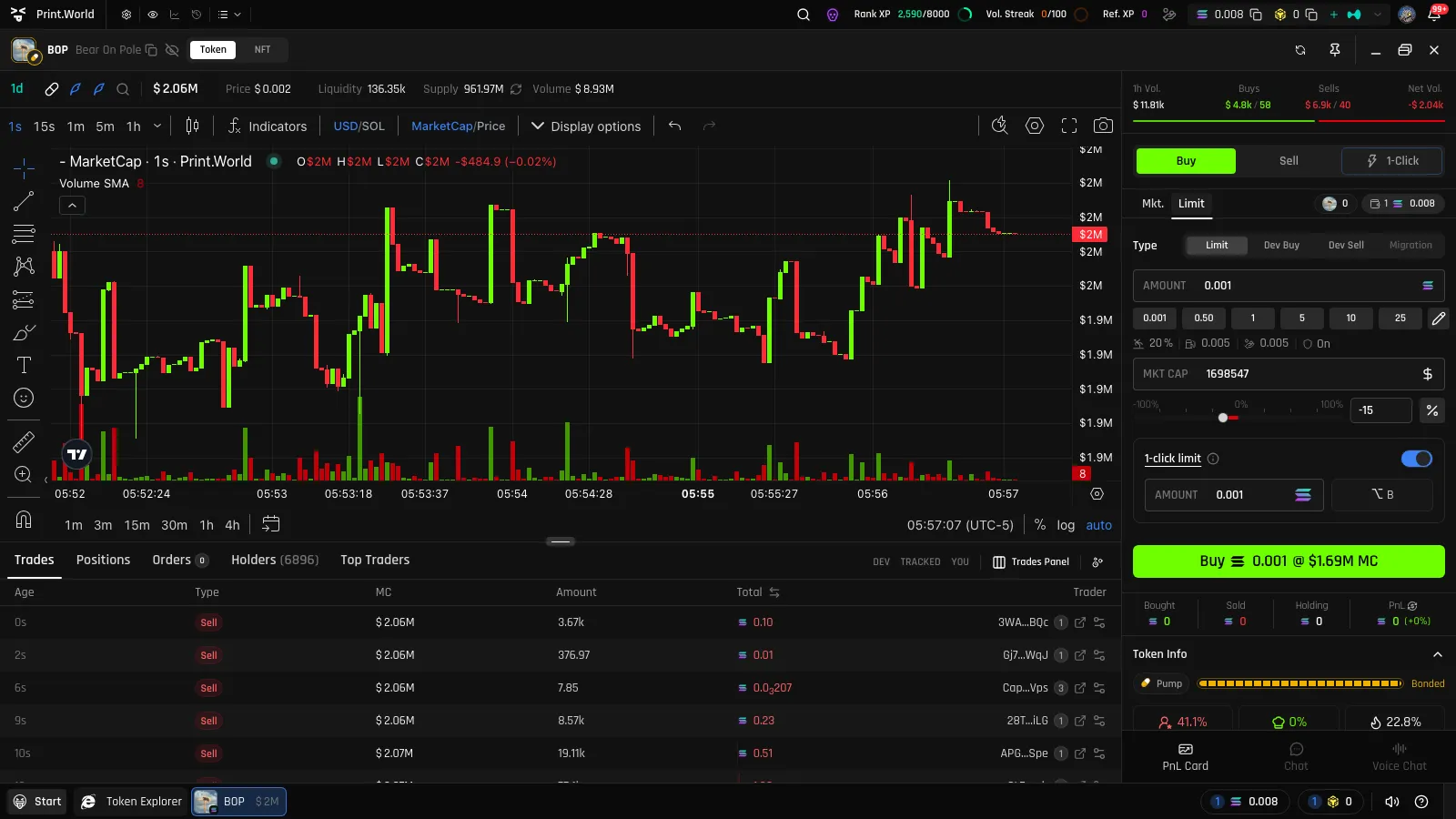
Trigger Types
Section titled “Trigger Types”Every order has a Type that defines what fires it:
| Type | Fires when |
|---|---|
| Limit | The token reaches your target market cap (or price) |
| Dev Buy | The token’s developer wallet buys |
| Dev Sell | The token’s developer wallet sells |
| Migration | The token completes its migration to a DEX (see Token Lifecycle) |
Dev Buy, Dev Sell, and Migration are event triggers — no price target needed. The Migration type is unavailable on tokens that have already migrated (“Token has already migrated”).
Setting the Target Market Cap
Section titled “Setting the Target Market Cap”For Limit-type orders, set the trigger level in the MKT CAP input. You can:
- Type an absolute market cap
- Drag the polarity slider to offset from the current level (negative for below, positive for above)
- Toggle between entering a % offset and an absolute MC value
Amounts follow the same rules as market trades: buys are in the chain’s native currency, sells are a percentage of your holdings. The trade button reads back the full order — for example Buy ◎1 @ $212k MC — before you place it.
How to Create a Limit Order
Section titled “How to Create a Limit Order”There are four paths to the same result:
- Trade panel — switch the mode select to Limit (or the mobile dock’s Order mode), configure, and click the trade button.
- Chart right-click — right-click a price level and choose Create Limit Buy/Sell Order; the order card opens pre-filled with that level.
- Chart hotkey — hold your configured hotkey, click where the dashed target line sits. See Chart.
- 1-click limit card — with a fixed amount and per-direction hotkeys configured, hotkey clicks place orders instantly with no confirmation. See 1-Click Trading.
If you have multiple wallets selected, the order is created per wallet — each wallet gets its own order leg, and partial failures are reported individually.
Each order stores the trade settings it was created with — slippage, priority fee, bribe, and MEV Protection — and shows them in the Orders table.
Order Statuses
Section titled “Order Statuses”| Status | Meaning |
|---|---|
| Pending | Active and waiting for its trigger |
| Paused | Kept, but temporarily not firing |
| Executing | Trigger hit — the trade is being submitted |
| Filled | Executed successfully (with a “View on explorer” link) |
| Cancelled | You cancelled it |
| No Funds | The wallet lacked balance at execution time |
| Error / Failed | Execution failed |
Order status updates arrive live — creation, execution, and failure each surface as a notification.
Edit, Pause, and Cancel Orders
Section titled “Edit, Pause, and Cancel Orders”The Orders tab in the bottom tables shows every order for the token, with a badge counting the active ones.
- Pending orders: Edit, Pause, or Cancel
- Paused orders: Edit, Resume, or Cancel
- Executing orders can’t be modified; filled orders link to the block explorer
Bulk controls in the tab header let you Pause All or Cancel All orders on the token at once.
Orders on the Chart
Section titled “Orders on the Chart”Every active order draws a line on the chart at its trigger level. Hovering an order row highlights its line, you can filter lines by wallet, and while editing an order a dashed preview shows the new level before you save.
Your Orders Across All Tokens
Section titled “Your Orders Across All Tokens”Your Account app aggregates orders across every token: Account → Activity → Orders lists them with token, type, amount, target, settings, and wallet, with the same manage actions. See Account.