
Withdraw Funds
Withdrawing crypto sends funds from your Print Wallet to any external address — a hardware wallet, another exchange, or a friend. You can withdraw the chain’s native token, like SOL on Solana, or any token you hold.
How to Make a Withdrawal
Section titled “How to Make a Withdrawal”-
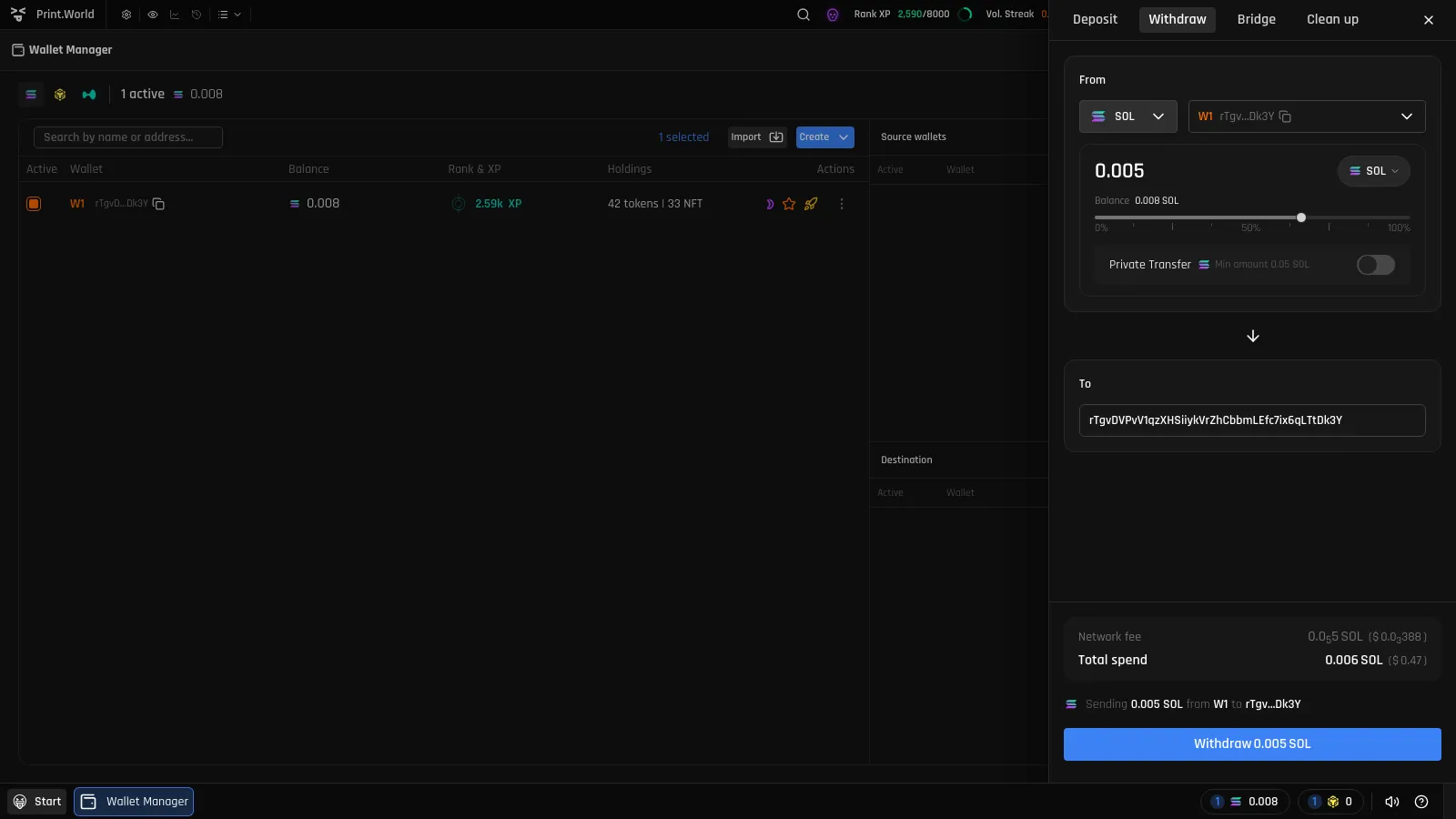
Open the Withdraw tab. Open the wallet balance popover and press Withdraw, or switch to the Withdraw tab in the wallet drawer.
-
Set up the “From” side. Pick the chain, the source wallet, and the token — the token picker lists the native token plus every token position you hold, each with its available balance. Enter the amount directly or drag the 0–100% slider.
-
Enter the destination address. Paste the external address into the “To” field. The form validates it for the selected chain before letting you continue.
-
Review the fees and summary. The footer shows the Network fee (in the native token and USD) and either the Total spend (for native-token withdrawals) or Gas reserved (for token withdrawals). A summary line confirms exactly what you’re sending, from which wallet, to which address.
-
Confirm. Press the Withdraw button — it stays disabled and tells you what’s missing (address, amount, or balance for the fee) until everything checks out.
Understanding Withdrawal Fees
Section titled “Understanding Withdrawal Fees”| Row | What it means |
|---|---|
| Network fee | The on-chain transaction cost, shown in the native token and USD. |
| Total spend | For native-token withdrawals: the amount sent plus the network fee. |
| Gas reserved | For token withdrawals: native funds set aside in your wallet to pay for the transaction. |
Private Transfer
Section titled “Private Transfer”For native SOL withdrawals, you can toggle on Private transfer. Instead of a direct on-chain transfer, the funds are routed through a third-party exchange, which breaks the public on-chain link between your wallet and the destination address.
When enabled:
- You’ll see exchange quotes sorted by estimated output, with the rate difference between providers and a refresh button.
- The fee rows expand to show the Provider fee, what the Recipient gets, and your Total spend.
- A Recently used section lists your past private transfers so you can reuse destinations.
You can also run private moves between your own wallets — see Wallet-to-Wallet Transfers for private distribution and its order history.
If a Chain Isn’t Activated
Section titled “If a Chain Isn’t Activated”Chains you haven’t activated yet show an Activate button in the Withdraw tab. Activate the chain (this creates a dedicated embedded wallet for it) before withdrawing on it — see Security & Private Keys.