
Quick Buy
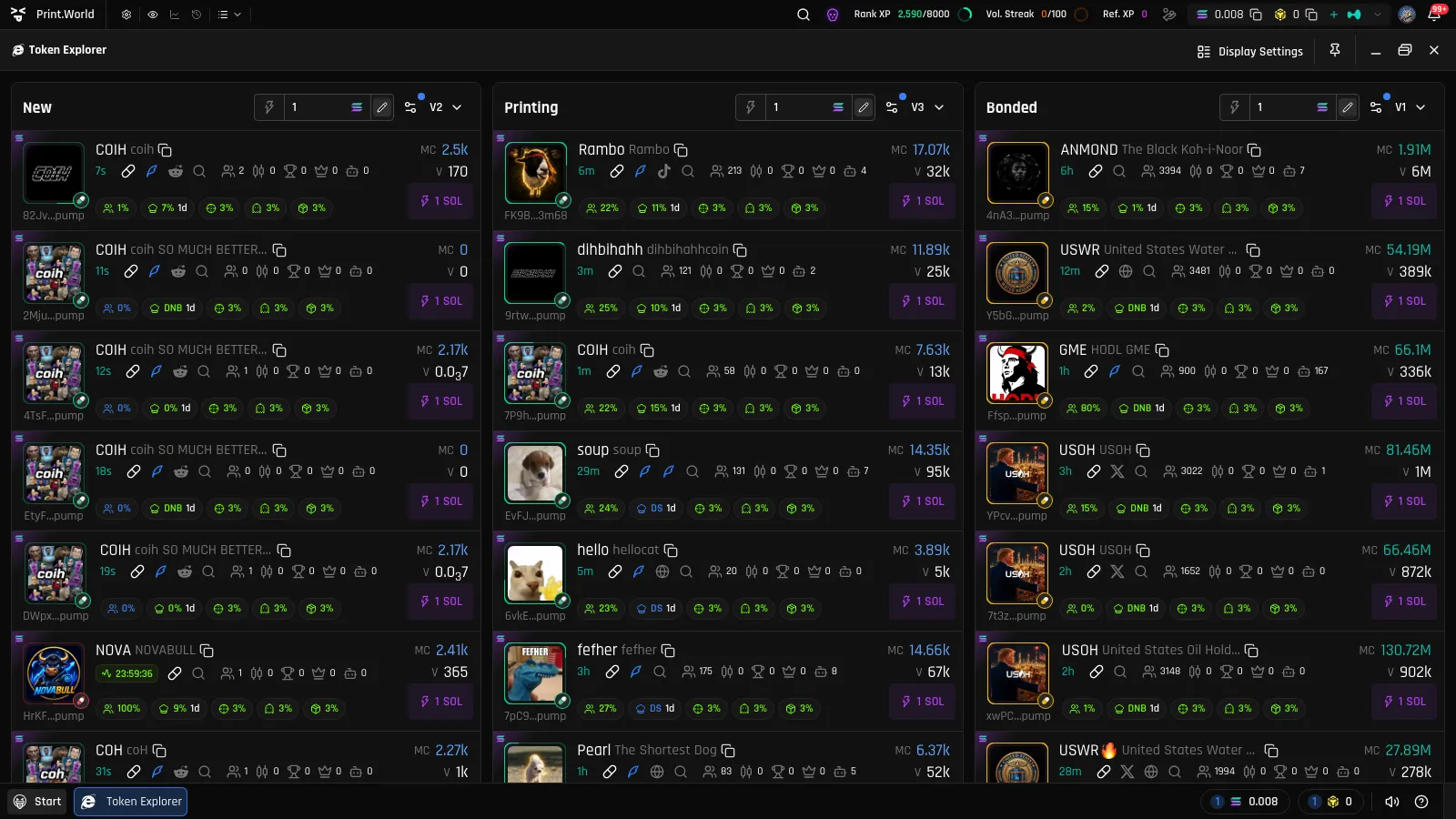
Quick Buy lets you buy memecoins with a single click, straight from the live token feed — no need to open the token page first. Every card ends with a Quick Buy button showing your preset amount in dollars (for example, “$25”); clicking it fires an instant market buy for that many dollars’ worth of the chain’s native currency, priced at the moment you click.
Setting Your Quick Buy Amount
Section titled “Setting Your Quick Buy Amount”Each list header has a Quick Buy amount input (marked with a zap icon and a $ prefix). Amounts are per list — New, Printing, and Bonded each remember their own — and are saved to your account. One dollar amount covers every chain in the list: switching chains never changes it. It starts at $10, must be above zero with at most two decimals, and caps at $1,000,000; an amount outside those bounds is refused and the field goes back to the saved one.
On mobile, the Quick Buy controls live in a collapsible section under each list header.
Quick Buy Settings
Section titled “Quick Buy Settings”Click the gear next to the amount input to open Quick Buy Settings, with a tab per chain:
| Setting | What it does | Availability |
|---|---|---|
| SLIPPAGE | Maximum price movement you accept before the buy fails. | All chains |
| PRIORITY FEE | Extra fee to prioritize your transaction. | All chains |
| BRIBE | Tip paid to validators for faster inclusion. | SOL only |
| MEV Mode | Off or Secure — Secure protects your transaction from MEV attacks (e.g. sandwiching). | SOL only |
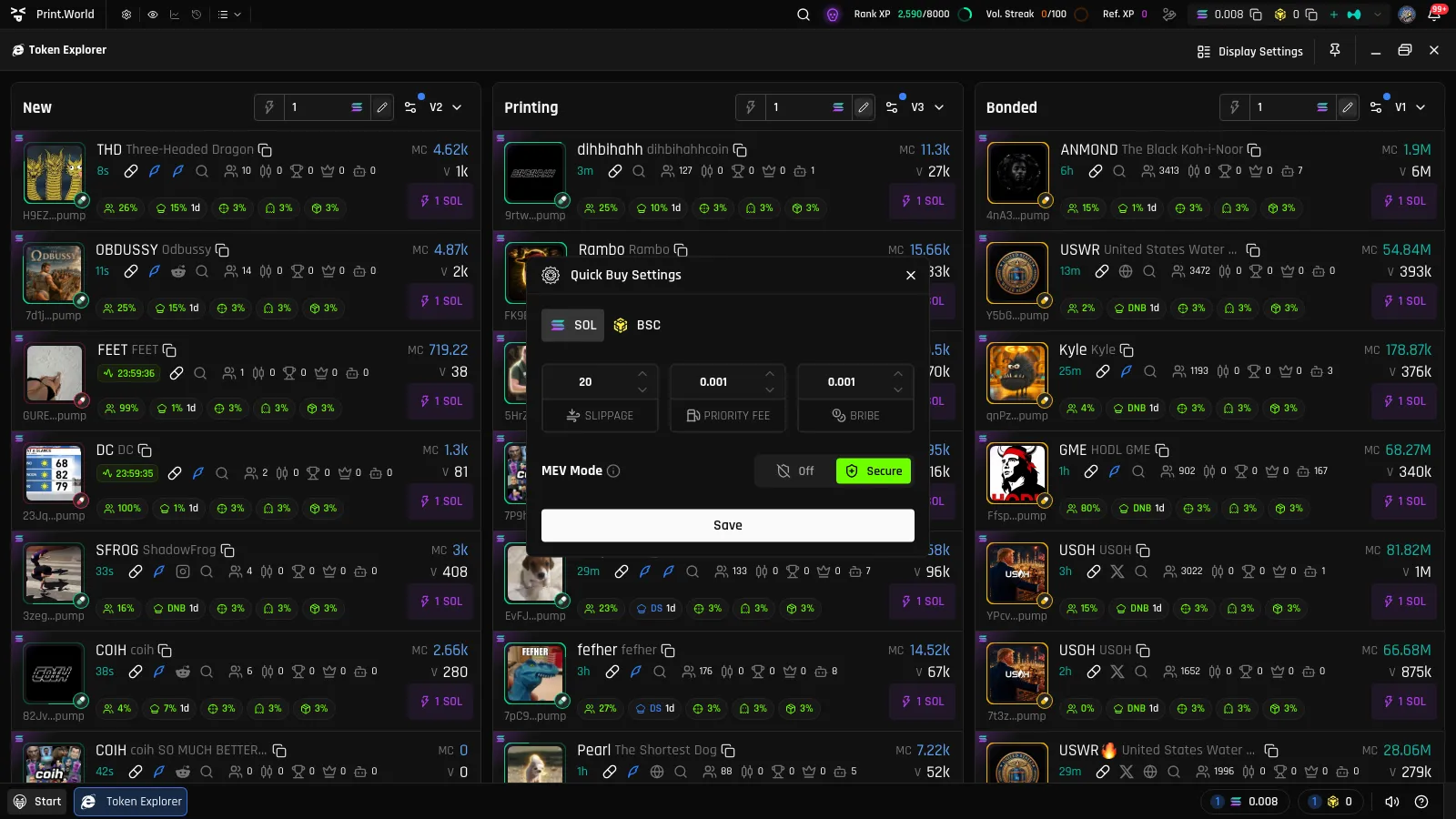
These settings apply to Token Explorer quick buys specifically — they are separate from the slippage settings you use when trading from a token page.
What Happens on Click
Section titled “What Happens on Click”- You click a card’s Quick Buy button.
- The buy executes immediately with your preset amount, converted to the chain’s native currency at that moment, and your settings — no confirmation dialog.
- Toast notifications track the transaction: processing, then success or failure.
A few behaviors to know:
- Migrating tokens — the Quick Buy button is hidden while a token is migrating to a DEX.
- Open the token too — by default, clicking Quick Buy does not open the token page. If you prefer it to, set “Quick buy behavior on click” to open token in Display Settings → Extras.
- Button style — the Quick Buy button’s size and color are configurable in Display Settings.
Requirements
Section titled “Requirements”- Signed in — Quick Buy requires an account. If you click while signed out, the sign-in flow opens instead.
- Funded wallet — you need enough balance on the selected chain to cover the amount plus fees.
- Chain wallets — buying on BNB or ETH requires an activated wallet for that chain; if yours isn’t activated yet, the activation flow opens when you click.
Selling
Section titled “Selling”Quick Buy is buy-only. To sell a position, open the token’s page and trade from there — see Buy & Sell in the Trading docs.