
Managing Tracked Wallets
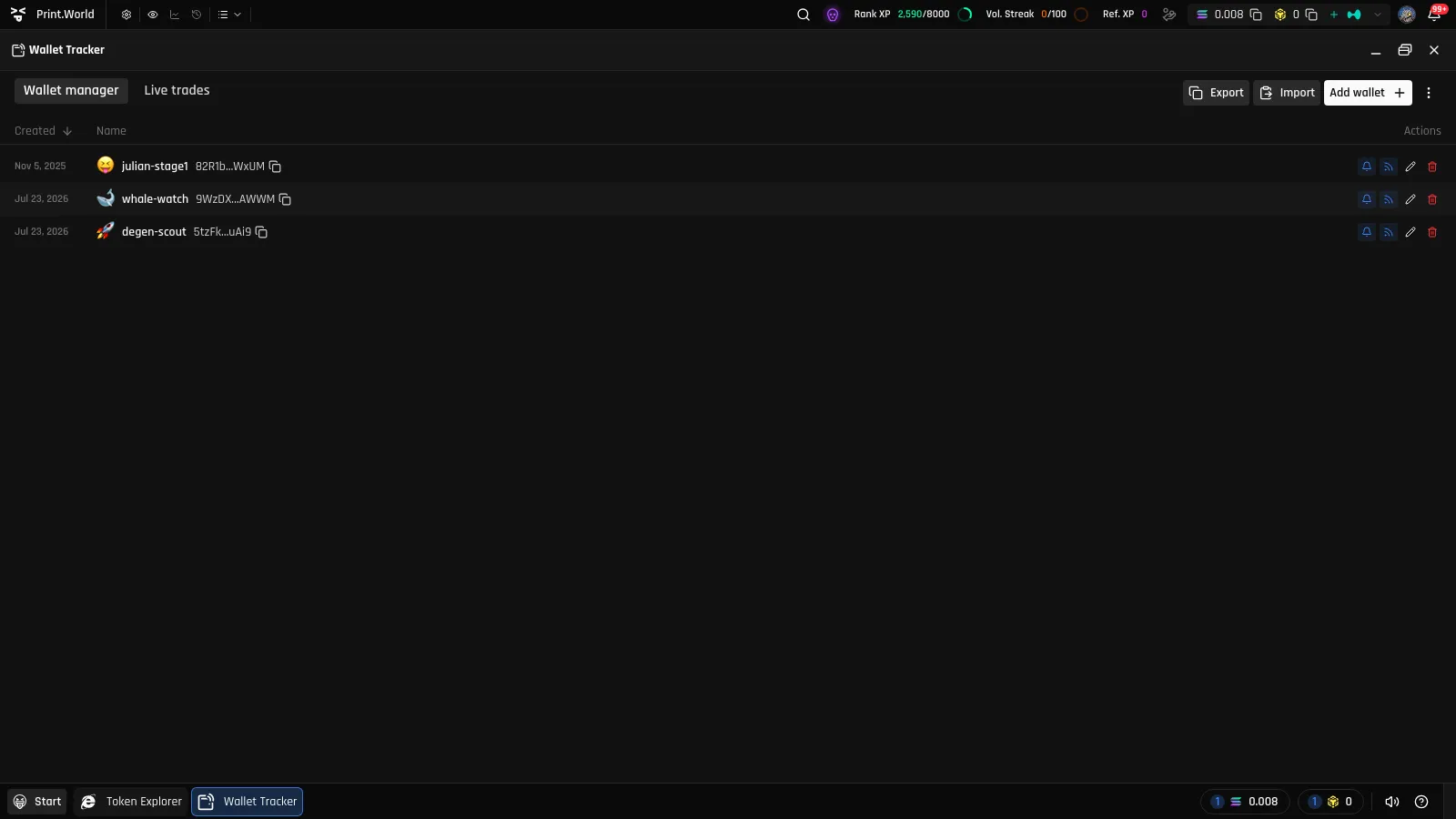
The Wallet manager tab is where you build your watchlist — track whale wallets, smart money, or any Solana address you want to follow. Each wallet in the list shows when it was added, its emoji icon, display name, and address, plus a set of per-wallet controls.
Adding a Wallet
Section titled “Adding a Wallet”-
Click Add wallet — from the empty state or from the Wallet manager tab header.
-
Give the wallet a name. This is the label you’ll see in the feed and in notifications, so make it recognizable.
-
Pick an emoji icon by clicking the emoji next to the name field (the default is 😝). The icon follows the wallet everywhere — the live feed, notifications, and even chart stickers.
-
Paste the wallet’s Solana address. The address is validated as you submit — an invalid address shows “Invalid Wallet address”, and only Solana addresses are accepted.
-
Click Add wallet. A “Wallet added successfully” confirmation appears and the wallet joins your list immediately.
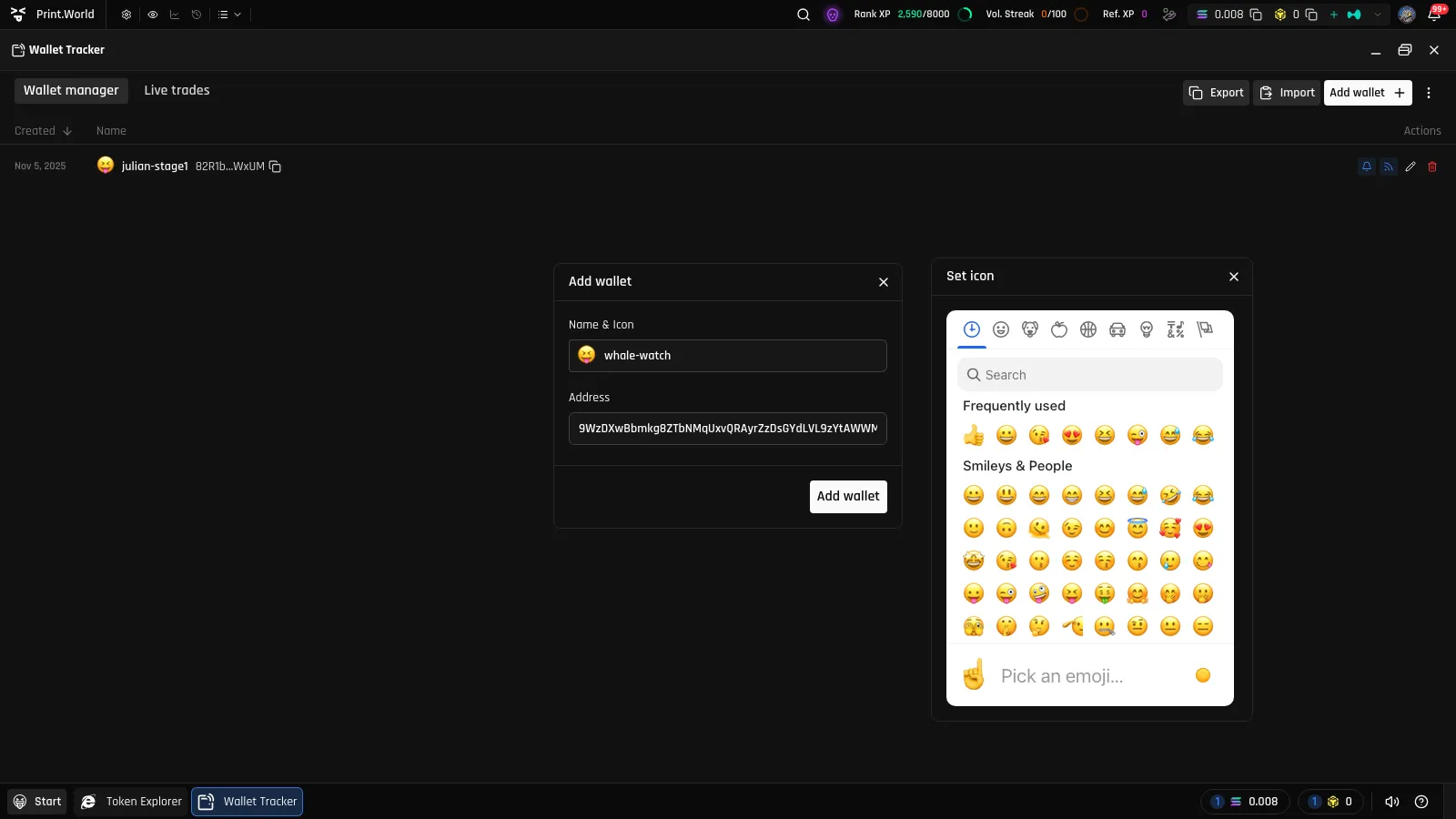
If you try to add an address you already track, the tracker rejects it with “Wallet already exists” — each address can only be in your list once.
Editing a Wallet
Section titled “Editing a Wallet”Click the pencil icon on a wallet’s row to open the Edit wallet dialog. You can change the name and the emoji icon at any time. The address is locked — it’s shown read-only with a copy button. To track a different address, add it as a new wallet.
Click Save Changes to apply.
Per-Wallet Controls
Section titled “Per-Wallet Controls”Each row in the Wallet manager has four controls:
| Control | What it does |
|---|---|
| Bell | Turns trade notifications for this wallet on or off, and picks its notification sound. See Notifications. |
| Feed toggle | Hides or shows this wallet’s trades on the Live trades feed (“Hide on live trades” / “Show on live trades”). Hidden wallets stay tracked — their trades just don’t appear in the feed until you show them again. |
| Pencil | Opens the Edit wallet dialog. |
| Trash | Removes the wallet from your list. |
Bulk Actions
Section titled “Bulk Actions”The ⋮ menu in the Wallet manager header applies an action to every tracked wallet at once:
- Enable / Disable all wallet notifications
- Show all wallets on live trades / Hide all wallets from live trades
- Remove all wallets — this one does ask for confirmation (“Are you sure you want to remove all N tracked wallet(s)? This action cannot be undone.”) before deleting everything.
Exporting and Importing Your Wallet List
Section titled “Exporting and Importing Your Wallet List”Your tracked wallet list is portable:
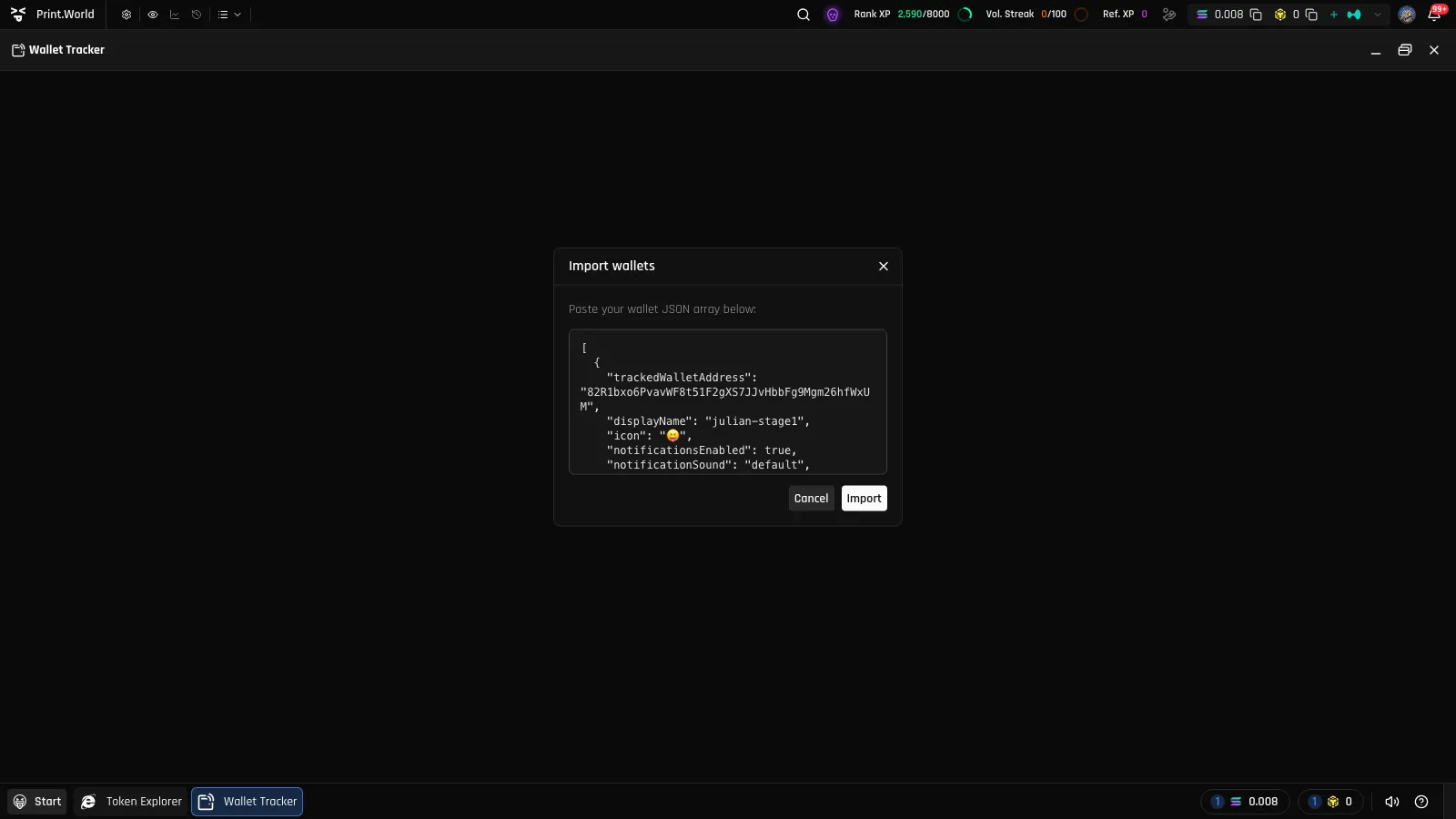
- Export copies the entire list — names, icons, addresses, and settings — to your clipboard as text (a JSON array). A toast confirms how many wallets were copied.
- Import opens a dialog where you paste a previously exported list. Wallets you already track are skipped, and a summary reports the result: “Import complete: X added, Y skipped, Z failed”.
This is the fastest way to move your list to another device or account, share a curated list with a friend, or keep a backup before a big cleanup.
What’s Next
Section titled “What’s Next”- Live Trades — watch your tracked wallets’ activity in real time
- Notifications — set up per-wallet sounds and alerts