
Buy & Sell
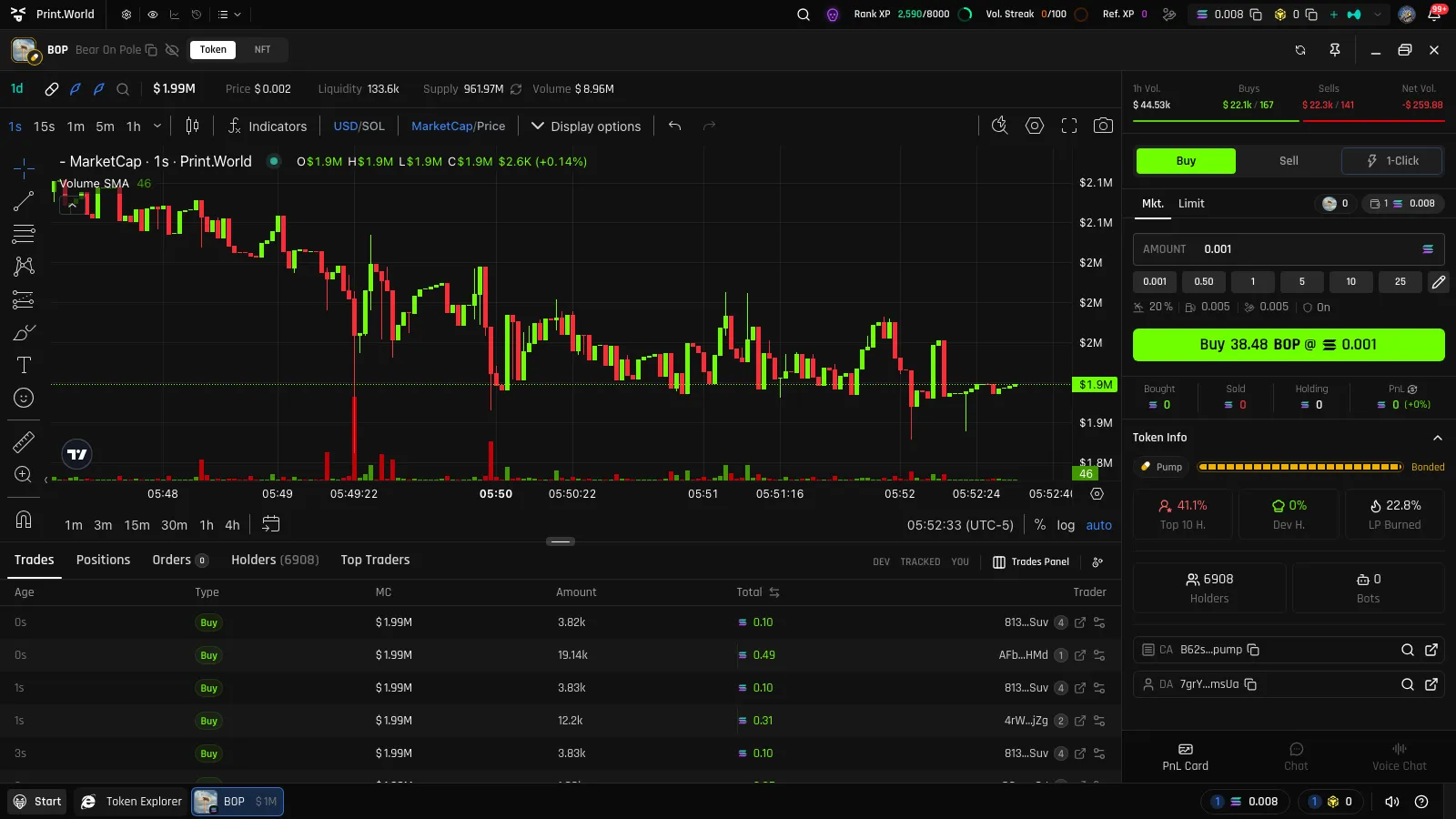
The trade panel on the right side of every token page is where you buy and sell Solana tokens at market. Switch between Buy (green) and Sell (red) at the top, enter an amount, and the trade button shows you a live quote before you commit.
How Buy and Sell Amounts Work
Section titled “How Buy and Sell Amounts Work”Buys and sells use different amount semantics:
- Buy — the amount is in the chain’s native currency (e.g. SOL). You’re saying “spend this much.”
- Sell — the amount is a percentage of your holdings. You’re saying “sell this share of what I own.”
The trade button always shows the resulting quote, for example Buy 7.2M TOKEN @ ◎1 or Sell 50% TOKEN @ ◎1, so you can see the estimated tokens received or proceeds before clicking.
Presets
Section titled “Presets”Below the amount input is a row of preset buttons — buy presets in native currency (hover to see the USD equivalent) and sell presets as percentages. Click the pencil to edit them inline; your presets are saved to your account and follow you across devices.
1-Click mode keeps its own separate preset sets, so your instant-execution amounts never collide with your regular ones.
Trade Settings: Slippage, Fees, and MEV Protection
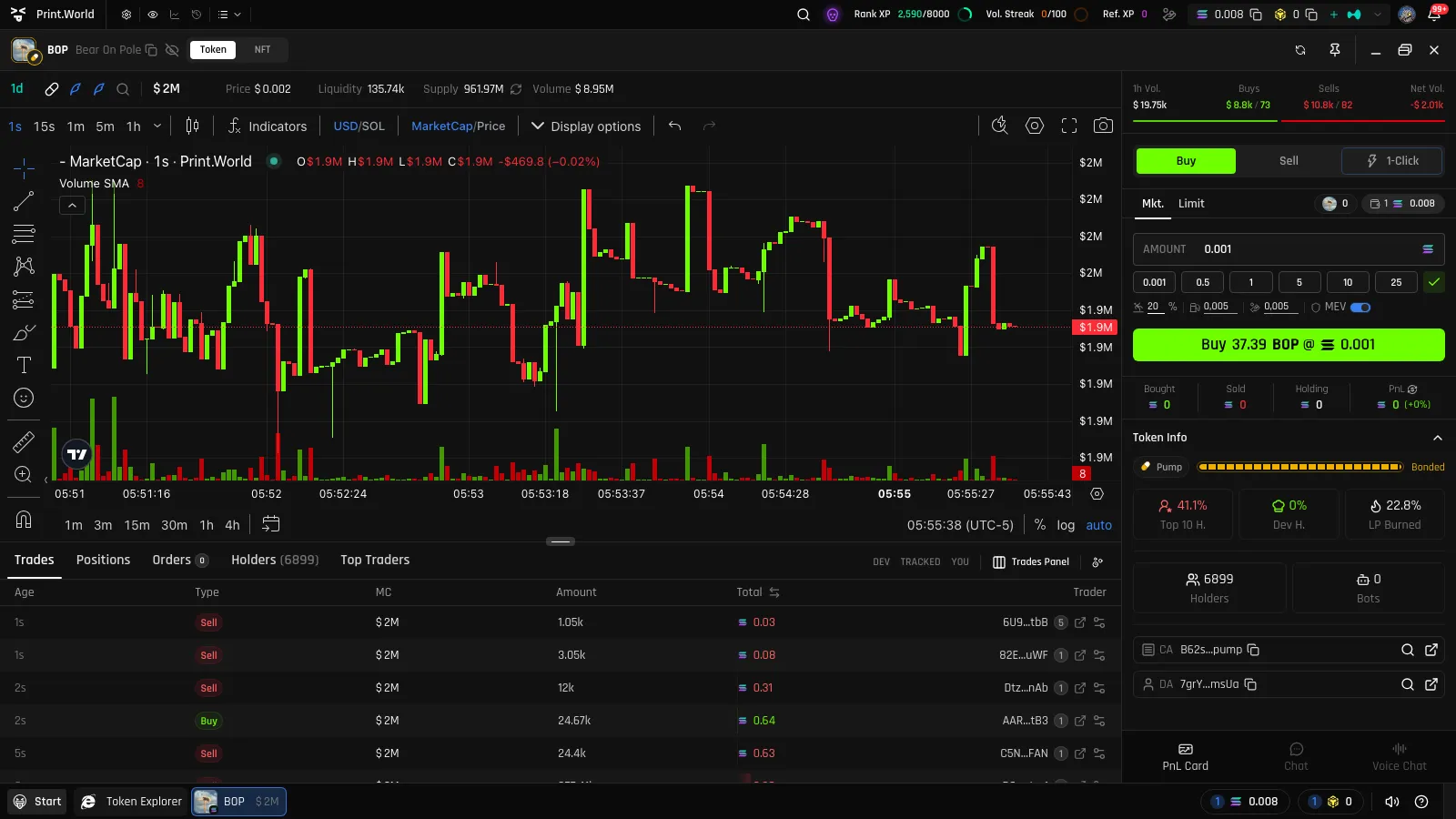
Section titled “Trade Settings: Slippage, Fees, and MEV Protection”The settings bar under the panel controls how your transaction is submitted. Each value is editable inline (via the same pencil edit mode as presets):
| Setting | What it does |
|---|---|
| Slippage | The maximum price movement you’ll accept between quoting and execution, as a percentage (up to 100) |
| Priority fee | An extra network fee that helps your transaction get processed faster |
| Bribe | An additional tip paid to block producers to prioritize your transaction’s inclusion |
| MEV Protection | An On/Off switch that routes your transaction through protected infrastructure to reduce exposure to sandwich and front-running attacks |
Market mode, 1-Click buy, and 1-Click sell each keep their own settings record, so aggressive instant-execution settings don’t leak into your regular trades.
Fees in Your Total
Section titled “Fees in Your Total”The estimated total for a trade includes your amount plus the priority fee, the bribe, and a small platform fee.
How to Place a Trade
Section titled “How to Place a Trade”-
Choose Buy or Sell in the panel header.
-
Enter an amount or tap a preset.
-
Review the live quote on the trade button.
-
Click. The trade executes across all wallets you have selected.
A processing toast appears immediately, then resolves into a trade notification card with the outcome — filled amounts, and per-wallet results if you traded from multiple wallets. Your balances, the P&L strip, and the Positions and Trades tables all update in real time.
Multi-Wallet Trading
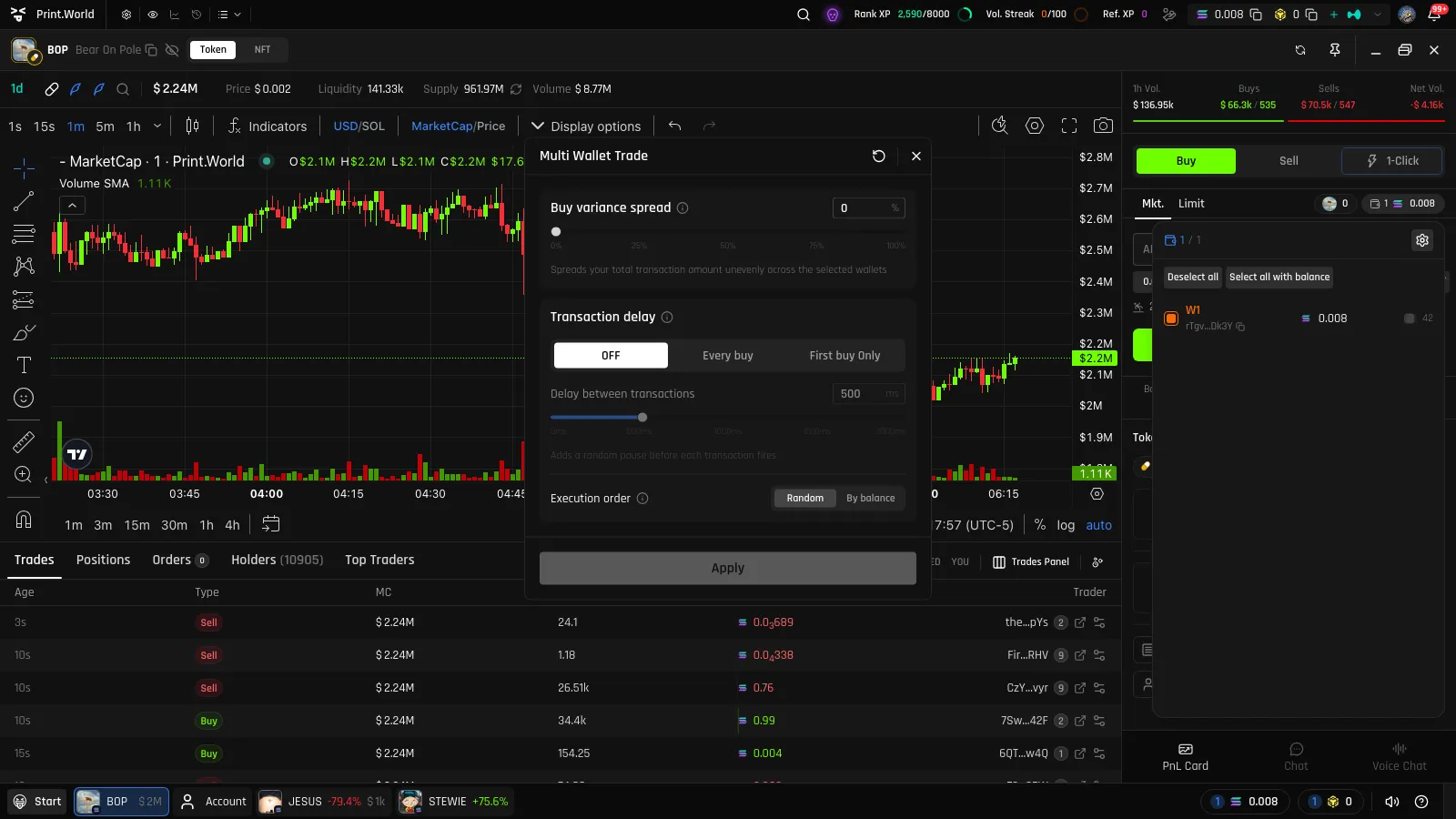
Section titled “Multi-Wallet Trading”The wallet picker at the top of the panel lets you select several wallets at once — grouped into holders and non-holders of the token. A single click then fans the trade out to every selected wallet.
The Multi Wallet Trade settings control how the fanout behaves:
- Buy variance spread — randomizes the per-wallet buy amounts around your target, so the wallets don’t all buy identical sizes
- Transaction delay — adds a delay between wallet legs (off, on for every leg, or only before the first buy), with an adjustable interval
- Execution order — process wallets in random order or by balance, descending
If some legs fail — for example a wallet with insufficient balance is skipped pre-flight — the trade card lists each leg’s result individually, so a partial fill is never silent.
Why a Trade Might Fail
Section titled “Why a Trade Might Fail”The panel tells you why, before or after the attempt:
- The trade button is disabled with a tooltip while wallets are connecting.
- Buys from wallets without enough balance are skipped and reported as failed legs (“Insufficient balance”).
- Sells validate that you actually hold the token and that the percentage is valid.
- Failed trades surface as clear error toasts (e.g. “Couldn’t sell …”) rather than disappearing quietly.
And if the token is mid-migration, the whole panel is paused behind the migrating gate — see Trading Overview.
Related
Section titled “Related”- 1-Click Trading — skip the confirmation step entirely with instant presets
- Limit Orders — trade automatically when your target is hit
- P&L Tracking — see what your trades add up to