
Watching Live Streams
Watch crypto live streams directly inside print.world as creators broadcast in real time. Every stream opens in its own Live Portal window with the video player, stream details, chat, and voice chat together in one place.
Finding Live Streams
Section titled “Finding Live Streams”There are two entry points on the desktop:
- Start Menu — open the Livestream category and choose Watch Streams. This opens a grid of every stream that is currently live.
- Desktop shortcut — the Live Streams icon on the desktop shows an animated red indicator whenever any stream is live, so you can tell at a glance without opening anything. Hovering the icon shows a tooltip announcing the live stream.
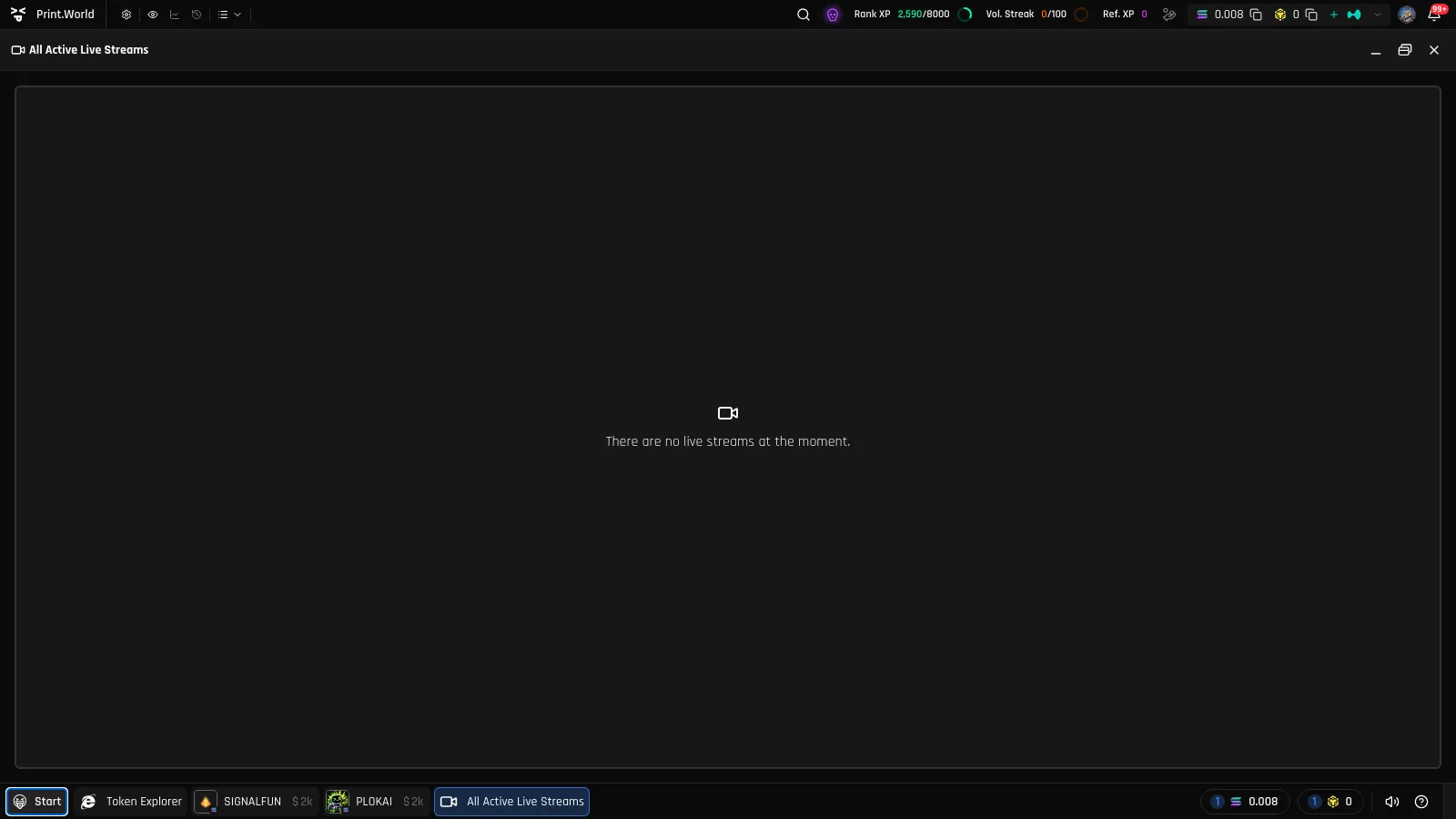
Each card in the Watch Streams grid shows a recent snapshot of the stream, a red LIVE tag, the current viewer count, the stream name, and the streamer. If nothing is live, the grid shows “There are no live streams at the moment.”
Opening a Stream
Section titled “Opening a Stream”Click a stream card to open it in a Live Portal window. The window is titled after the stream, and because streams are ordinary desktop windows, you can:
- Resize, move, and maximize the window like any other app.
- Keep multiple streams open at the same time, each in its own window.
- Watch while using other apps — charts, the Token Explorer, your wallet.
When you open a stream you are also automatically connected to its voice chat room — see Voice Chat.
The Stream Player
Section titled “The Stream Player”The top of the video shows the live viewer count and the stream’s running duration. Hover over the video to reveal the control bar:
| Control | What it does |
|---|---|
| Play / Pause | Pause or resume playback on your side. |
| Volume | Toggle the stream’s audio on or off. |
| Picture-in-Picture | Pop the video into a small floating player that stays on top while you use other apps. |
| Fullscreen | Expand the video to fill your screen. |
Stream audio also has its own Livestream channel in the system volume mixer, so you can balance it against other platform sounds.
Screen Sharing
Section titled “Screen Sharing”Hosts can switch their broadcast from camera to screen share. When they do, the player simply shows the shared screen instead of the camera — nothing changes on your side, and all your controls keep working.
Stream Statuses
Section titled “Stream Statuses”The player tells you what is happening when video is not playing:
| Message | Meaning |
|---|---|
| Loading… | The stream is connecting. |
| Stream not available | The stream could not be loaded. |
| The host has paused the stream | The host turned their camera off temporarily; the stream will resume. |
| Stream ended | The broadcast is over. |
When a Stream Ends
Section titled “When a Stream Ends”When the host ends the broadcast:
- The player shows the Stream ended overlay.
- The chat column closes and the voice chat room disconnects.
- The stream disappears from the Watch Streams grid in real time.
You can close the window whenever you’re ready.
What’s Next
Section titled “What’s Next”- Stream Chat — chat with the audience while you watch.
- Voice Chat — talk in the stream’s voice room.
- Going Live — host your own stream.