
Wallet Manager — Run Multiple Wallets
The Wallet Manager is print.world’s multi-wallet manager — the app for running more than one wallet. Create fresh wallets, import existing ones, organize everything into groups, decide which wallets participate in trading, and assign special roles — all from a single table.
Open it from the wallet balance popover (Manage) or from the app tray.
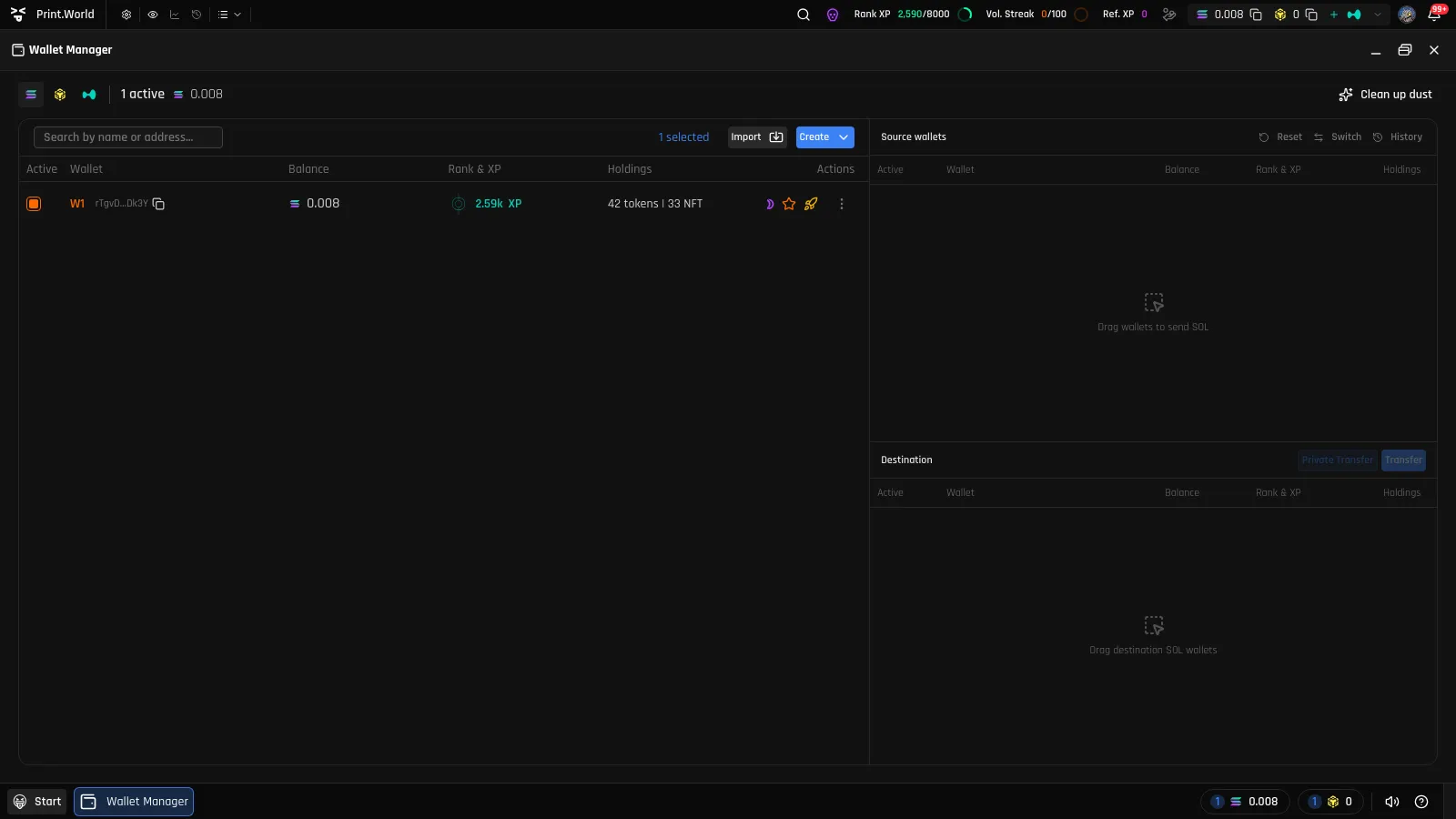
The Wallets Table
Section titled “The Wallets Table”Each row is one of your wallets, with:
| Column | What it shows |
|---|---|
| Active | Checkbox — whether this wallet is included in trade distribution. |
| Wallet | Name (or address), role badges, and a drag handle for reordering. |
| Balance | The wallet’s native balance. |
| Rank & XP | The wallet’s leaderboard rank tier and XP. |
| Holdings | Open token positions and NFT count. |
The header shows a chain filter, how many wallets are active, the total balance of your active wallets, and a Clean up dust button (see Clean Up).
The “Active” Toggle
Section titled “The “Active” Toggle”The Active checkbox controls whether a wallet takes part in trading — active wallets are the ones the platform distributes trades across, and they’re the wallets offered in trade wallet pickers. Untick it to park a wallet without archiving it. See the Trading docs for how trades use your active wallets.
Creating and Importing Wallets
Section titled “Creating and Importing Wallets”- Create → Wallet generates a brand-new embedded wallet on the selected chain.
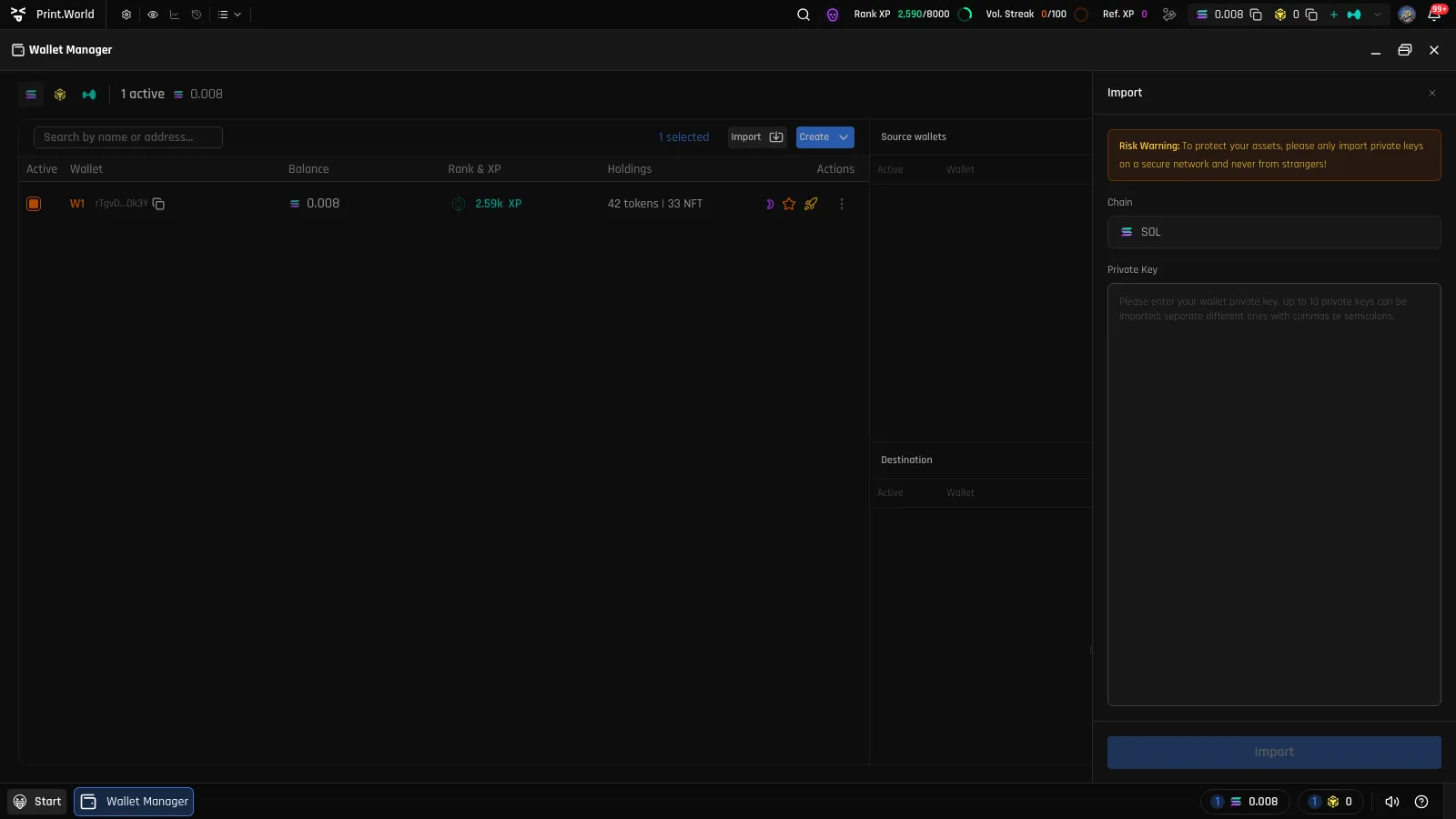
- Import lets you paste private keys of existing wallets — up to 10 at once. The result shows how many imported successfully and how many failed.
Groups and Organization
Section titled “Groups and Organization”- Create → Group adds a named group (auto-named “Group 1”, “Group 2”, … — rename as you like).
- Drag and drop wallets to reorder them or drop them into groups.
- Use the search field to filter by name or address.
- Rename any wallet from its row menu to keep things readable.
Wallet Roles
Section titled “Wallet Roles”Each chain has role assignments you set from a wallet’s row menu:
| Role | Badge | What it does |
|---|---|---|
| Primary Wallet | Orange star | Your main wallet on the chain — the default deposit target and the address shown in the top bar. Cannot be archived or deleted. |
| NFT Wallet | Purple | Holds NFTs when a binding is created — see Binding. |
| Creator Wallet | Rocket | Used when launching tokens and collections. |
If you haven’t assigned an NFT or Creator wallet, the primary wallet fills those roles.
Archive and Delete
Section titled “Archive and Delete”Wallet lifecycle follows a deliberate two-step rule:
-
Archive a wallet you no longer use (row menu → Archive). Archived wallets move to their own section and can be unarchived at any time. The primary wallet can’t be archived.
-
Delete is only available for archived, non-primary wallets, and asks for confirmation first.
Moving Funds Between Wallets
Section titled “Moving Funds Between Wallets”The Wallet Manager is also where you move funds between your own wallets — distribute from one wallet to many, transfer one-to-one, or consolidate many into one, with an optional private mode. See Wallet-to-Wallet Transfers.